The strip that runs your set — exercise, set count, rep target, live heart rate, and a way to log, hide or end.
WherePlan›an exercise›Start
What it is
While you're on an exercise, a panel at the bottom of the screen shows the exercise name, which set you're on, your rep target and tempo, and your live heart rate if you're wearing an Apple Watch. A Done button logs the set and starts your rest; the ✕ hides the panel without stopping the workout; the stop icon ends the whole session.
Why it helps
Everything you need mid-set stays in one strip, so you're not hunting through the app between sets.
How to use it
On the Plan tab, tap an exercise and tap Start to open the live panel.
Work through your set, then tap the Done button — it reads Done! ✓ Last set on your final set, or names your rest otherwise.
Tap the ✕ to hide the panel without ending the workout — it keeps running, and a bar at the bottom of every tab lets you jump back in.
Tap the stop icon to end the whole session (it asks you to confirm first).
Between exercises, a bar confirms your workout is still recording on your watch, with a button to end it.
Needs an Apple Watch
WherePlan›between exercises›Workout recording on your watch
What it is
When you're between exercises — the live panel isn't open — and your Apple Watch is still recording, a bar reading Workout recording on your watch sits above the tab bar, with an End workout button.
Why it helps
It's easy to lose track of a watch recording once you close the exercise panel; the bar is a constant reminder it's still going, and a quick way to stop it without going back into a set.
When it happens
automatically, whenever your Apple Watch is still recording and the live panel is closed
How to use it
Between exercises, look for the Workout recording on your watch bar just above the tab bar.
Tap End workout to stop the recording and end your session (it asks you to confirm).
Good to know
The bar only shows when nothing else is covering it — the live panel and any HIIT or warm-up screen take priority.
A countdown after every set, with a Skip Rest button and a nudge once your heart rate shows you've recovered.
WherePlan›an exercise›after logging a set
What it is
After you log a set, a ring counts down your rest automatically, with a Skip Rest button beside it. With a live heart rate from your Apple Watch, a Recovered — ready for your next set line fades in once your heart rate has dropped enough — it's informational and doesn't start your next set for you.
Why it helps
You don't have to watch a separate clock between sets, and if you're pairing a watch, it tells you when your body — not just the timer — says you're ready to go again.
When it happens
automatically, the moment you log a set
How to use it
Log a set and the rest countdown starts on its own.
Tap Skip Rest if you don't want to wait it out.
If you're pairing an Apple Watch, watch for Recovered — ready for your next set under the countdown — the countdown still runs and nothing starts your set for you.
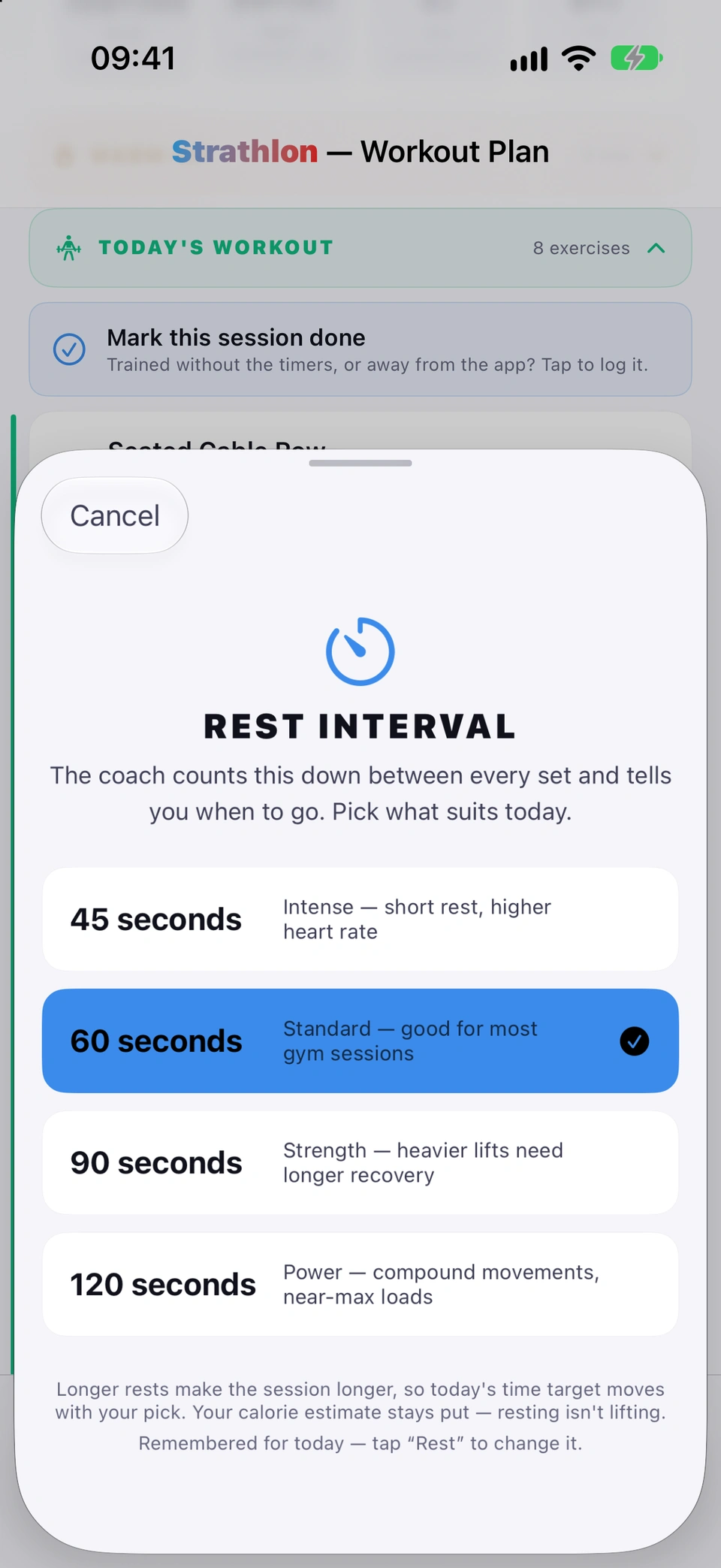
Pick 45, 60, 90 seconds or 2 minutes for your rest between sets, remembered for the rest of the day.
WherePlan›an exercise›the rest chip under Start
What it is
A rest chip under Start shows your current rest length and opens a picker with four options: 45, 60, 90 seconds or 2 minutes. Your pick is remembered for the rest of the day, on both your phone and your paired Apple Watch. On a superset or tri-set it sets the rest between rounds instead.
Why it helps
Rest length changes how the app's timers, your watch and the spoken coach all pace your session, so you can match it to what you're training that day without answering the question before every exercise.
How to use it
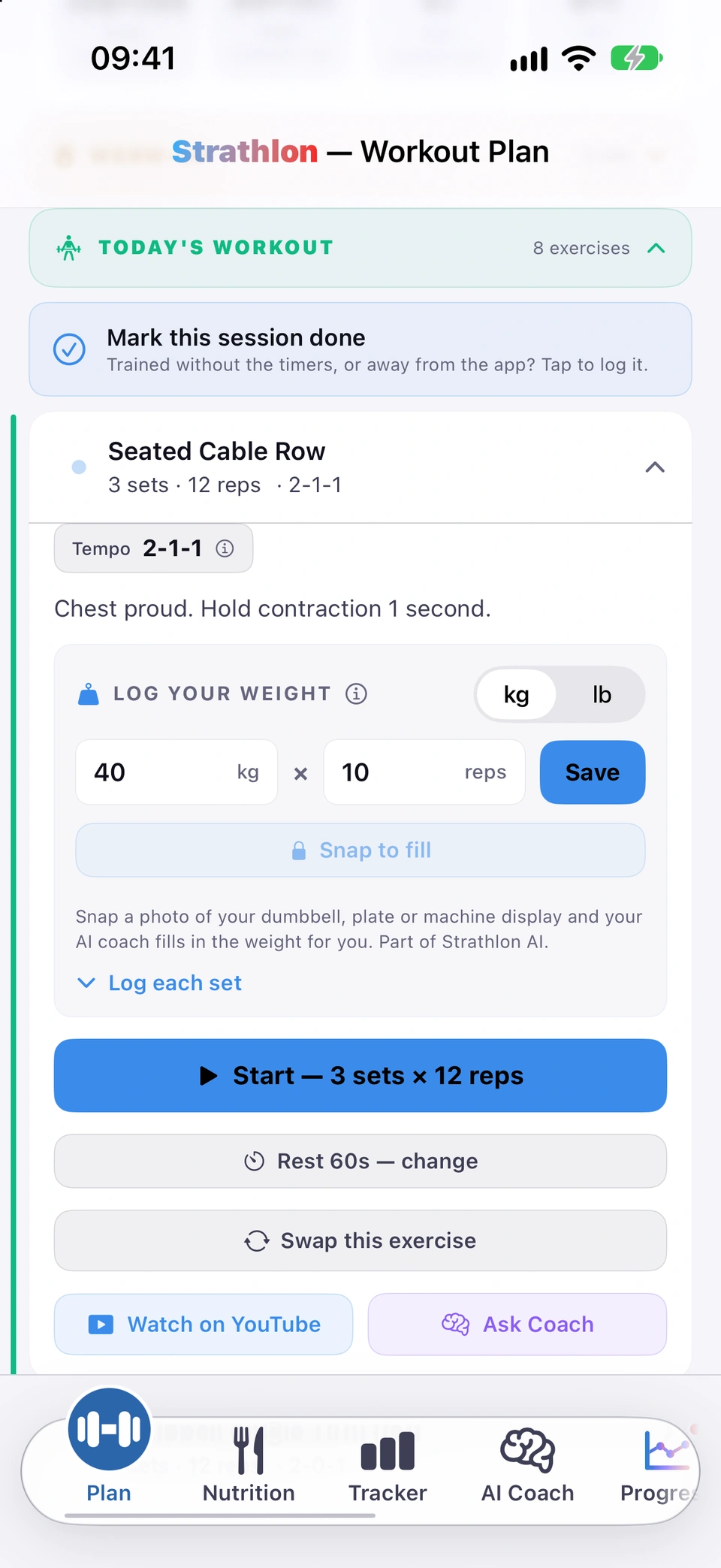
Picking your rest length.Tap Rest 60s — change under Start (it names whatever your rest is currently set to).
Choose 45, 60, 90 seconds, or 2 minutes.
Your choice applies for the rest of today; tap the chip again any time to change it.
Tips
The first time you start an exercise each day, Strathlon asks you to pick before it starts the rest countdown; picking from the chip later doesn't ask again.
Good to know
A longer rest lengthens today's time estimate but not your calorie estimate — resting isn't lifting.
A voice calls out each exercise and set while you train, so you can keep the phone down between sets.
WhereAutomatic, during a warm-up, workout or HIIT session
What it is
During warm-ups, gym exercises and HIIT, a voice announces the exercise and set, counts you into each work set, and reminds you as your rest comes to an end. On a weighted exercise it also says that set's own weight with the reps, for example "8 reps at 5 kilos" (or in pounds, if that's your unit).
Why it helps
You can train without staring at your phone — the coach tells you what's next and when to go.
When it happens
automatically, throughout a warm-up, gym workout or HIIT session
Tips
Pick a female or male voice, and which of your phone's voices reads it, from Coach voice.
The weight it says is the figure your watch and Lock Screen show for that set, so a pyramid or drop set is announced weight by weight. On a bodyweight, timed or distance exercise, or one with no weight saved yet, it says the reps or time alone.
When your workout plan moves into a new training phase, the reps it announces are that phase's own range until you save a rep count of your own there. Your weight carries over as before.
The coach speaks in your chosen voice from its very first line. If your phone is still getting that voice ready, the first line waits for it rather than being read in a different voice.
Log the weight and reps you lifted, pre-filled from last time, or open per-set detail.
WherePlan›an exercise›LOG YOUR WEIGHT
What it is
The LOG YOUR WEIGHT panel on each exercise lets you enter weight × reps (pre-filled from your last session) in kg or lb, and tap Save once. A weight and reps you've saved carry into your next session, so the panel opens already saved. For per-set detail, open Log each set to enter and save each set on its own. Bodyweight moves can be saved at 0.
Why it helps
Logging what you actually lifted is what lets Strathlon pre-fill your next session and track your progress.
How to use it
Logging your working weight.Open an exercise and find LOG YOUR WEIGHT.
Type your weight and reps (kg or lb, switched with the segmented control), then tap Save. Once saved it reads Saved, with your working weight shown underneath; change either figure to log again. The next time you open that exercise it opens the same way, already saved, until you change a figure and tap Save again.
For bodyweight moves, save a weight of 0 — it's logged as Logged as bodyweight (no added load).
Want a different weight per set? Tap Log each set to expand per-set rows, each with its own save.
Check the line under the box. When every set is the same it reads Working weight: 40 kg · 88 lb; when your sets carry different weights it lists each one, for example Saved per set: 20 / 22.5 / 25 kg · 44 / 49.5 / 55 lb.
Tips
Tap the ✕ beside a saved weight to remove it if you logged it by mistake.
A pyramid or drop set carries over set by set. Your watch, the Lock Screen, the coach's voice and what's saved when you tap Done each use that set's own weight, not your heaviest set repeated.
When your workout plan moves into a new training phase, your weight keeps carrying over, but the reps start from that phase's own range until you save a rep count of your own there.
If you use pounds, the box opens showing your saved weight in pounds, and switching between kg and lb doesn't change the weight you've saved.
A bodyweight set shows just its reps on your watch and Lock Screen, never 0 kg.
Photograph a dumbbell, plate or machine display and Strathlon reads the weight for you.
With the subscription
WherePlan›an exercise›LOG YOUR WEIGHT›Snap to fill
What it is
Tap Snap to fill on LOG YOUR WEIGHT and photograph a dumbbell, plate stack or machine display; Strathlon reads the number and fills the weight field for you to check. For a loaded barbell, a sheet asks your bar's weight and what's on one side, shows the running total, and only fills the field once you tap the total — nothing is saved until you tap Save.
Why it helps
It's faster than typing, and for a barbell it works out the total for you instead of you doing the maths mid-set.
How to use it
Under LOG YOUR WEIGHT, tap Snap to fill.
Photograph the dumbbell, plate or machine display.
For a loaded barbell, confirm the bar weight and what's on one side in the sheet that opens — the total is worked out and shown.
Check the filled weight, then tap Save as normal — nothing is logged until you do.
A full-screen countdown ring with your stats, and clearly labelled Pause, Skip and End controls.
WherePlan›WARM-UP or a HIIT FINISHER›Start
What it is
Warm-ups and HIIT rounds run on a shared full-screen layout: a large countdown ring in the middle, your stats either side, and a labelled primary control with Pause, Skip and End beneath it. Pausing also pauses your Apple Watch recording.
Why it helps
One consistent screen for both, with every control labelled in words rather than a bare icon, so it's clear what each button does mid-session.
How to use it
Open WARM-UP or a HIIT FINISHER and tap Start.
Tap Pause to pause the countdown and your watch recording, or Resume to continue.
Tap Skip to move on early, or End to stop and confirm.
HIIT timer
A full-screen work/rest timer for your HIIT finisher, with round dots and a resumable pause.
WherePlan›HIIT FINISHER›Start
What it is
HIIT FINISHER opens a full-screen timer counting work and rest rounds, with Start, Pause/Resume, Skip and End. A paused HIIT session can be resumed from the Plan tab.
Why it helps
Keeps your interval training on a single, clear screen with nothing to configure mid-round.
How to use it
On the Plan tab, open HIIT FINISHER and tap Start.
Work and rest rounds count down automatically; the round dots show where you are.
Tap Pause to stop and Resume to continue — even after leaving the screen, a Resume HIIT — in progress button brings you back.
Tap Skip to move to the next interval, or End to stop and confirm.
A summary of your HIIT finisher — rounds, minutes and where the calorie figure came from.
WhereHIIT FINISHER›Session Complete!
What it is
After a HIIT finisher, a card reads Session Complete! with the rounds you did, the minutes, and a calorie figure that says where it came from — from your watch, estimated from your heart rate, or estimated. It also offers to ask the coach about recovery or meals before anything else planned later today.
Why it helps
You get an honest summary the moment you finish, without wondering whether the calorie number is a measurement or a guess.
When it happens
automatically, the moment a HIIT finisher ends
How to use it
If more is scheduled later today, tap Ask coach: recovery & meals before session to hand off to your coach.
Tap Done to close the card.
Good to know
If you cut the finisher short, the card reports the rounds you actually completed, not the rounds it planned.
A quick Easy, Steady, Hard or Everything I had rating after a session, feeding your training load.
Wheresession recap›How hard was it?
What it is
After a session, you're asked How hard was it? with four choices — Easy, Steady, Hard and Everything I had — either in the recap or from its notification.
Why it helps
Your answer helps Strathlon track your training load over time.
When it happens
automatically, after a session, in your recap or its notification
How to use it
When How hard was it? appears, tap the option that fits — Easy, Steady, Hard or Everything I had.
Good to know
Each day can only be answered once — there's no way to change your rating afterwards.
A session left with nothing happening for a long while ends itself and saves up to your last trained moment.
WhereAutomatic, during any live session
What it is
If you leave a live session — paused, mid-rest, or just sitting on a screen — with no activity for a long while, Strathlon ends it for you and saves it up to the last moment you were actually training. Nothing is deleted.
Why it helps
So a forgotten, still-running session doesn't sit open for hours and misrecord your workout.
When it happens
automatically, after a long spell with nothing happening in a live warm-up, workout or HIIT session
Good to know
It only ever trims time that wasn't spent training — the session is saved up to your last set, rep or active moment, never earlier.
Warm-up, rest and HIIT countdowns stay on your Lock Screen and in the Dynamic Island.
WhereLock Screen / Dynamic Island›during a live session
What it is
While a warm-up, rest, HIIT countdown or gym set is running, it stays visible on your Lock Screen and in the Dynamic Island — exercise, set, reps, heart rate and calories, coloured by which phase you're in.
Why it helps
You can check your timer without unlocking your phone or opening the app.
When it happens
automatically, whenever a warm-up, rest or HIIT timer is running
On a gym set the card shows your set and rep target. On smaller iPhones, with your heart rate showing, the rep target sits on its own line under Set 2 of 4 and is never shrunk or cut off; on the largest iPhones it can sit beside it. Whichever layout an exercise starts with, the card keeps it for the whole exercise, so it doesn't rearrange as your heart rate or calories change.
No home-screen widgets
Strathlon has no home-screen widgets — only the two Live Activities.
Wheren/a
What it is
There's nothing to add to your Home Screen — Strathlon only provides the workout timer and bedtime Live Activities shown on your Lock Screen.
Why it helps
So you know not to go looking for a Strathlon home-screen widget — there isn't one to add.