See the day's sport sessions and activities, with their calorie bonus, and cancel, remove or edit any of them.
WherePlan›MY SCHEDULE & SPORT›SPORT & ACTIVITY
What it is
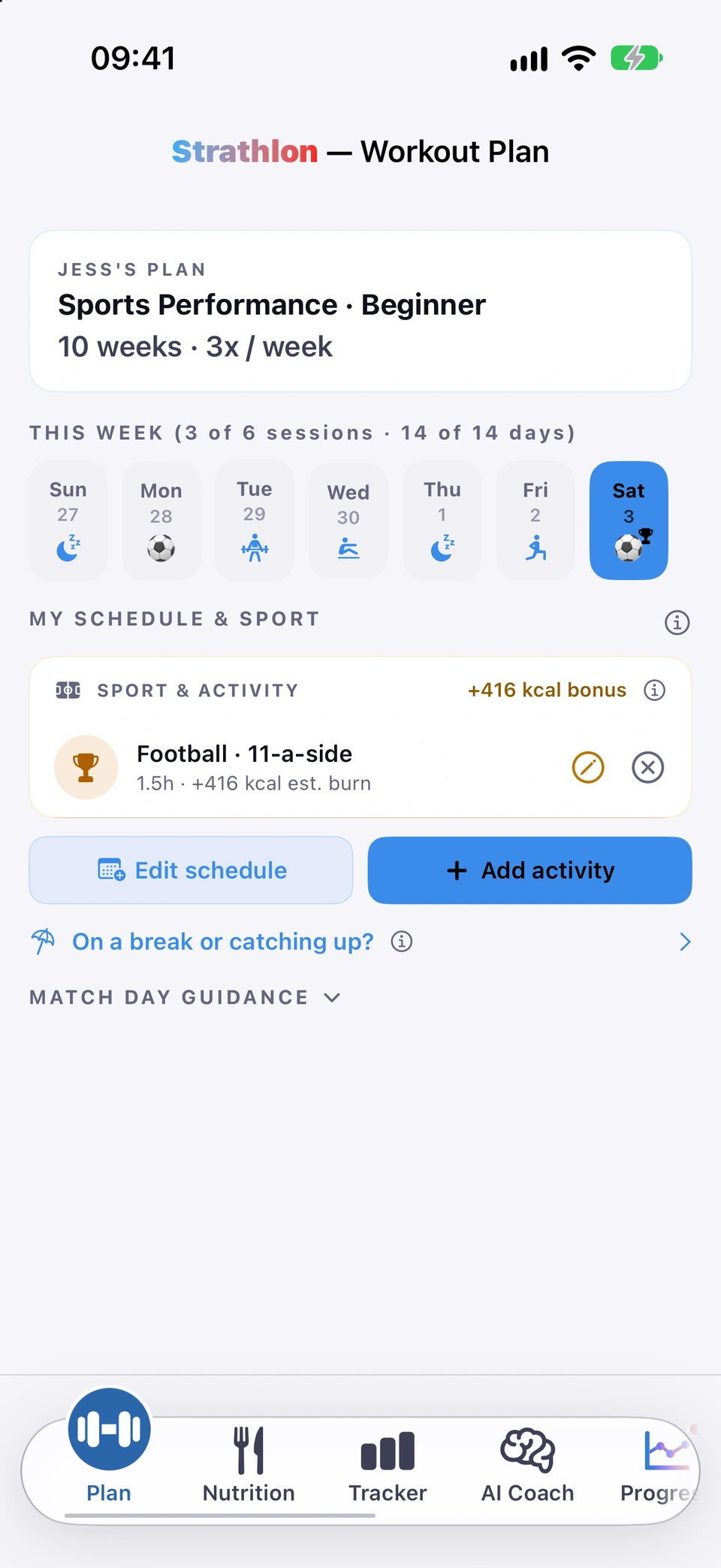
The SPORT & ACTIVITY panel shows the selected day's sport sessions and logged activities, with the calorie bonus they earn. Cancel a planned session (it's restorable), remove an ad-hoc one, or edit its calorie bonus.
Why it helps
One place to see and adjust everything scheduled or logged for the day, and what it's worth.
How to use it
Today's sport & activity panel.On the Plan tab, find SPORT & ACTIVITY under MY SCHEDULE & SPORT.
Tap ✕ on a planned session to cancel it — a Restore option takes its place.
On a break day the bonus badge still shows beside the sport you've scheduled, because a break pays your planned sport on top of its calories — see On a break or catching up?.
On any session in SPORT & ACTIVITY, tap the pencil to open Edit Calorie Bonus, where you can type your own figure in place of the estimate, or tap Reset to formula to go back to it.
Why it helps
If you know your session burnt more or less than the estimate — from a watch, say — you can tell Strathlon the real number.
How to use it
Today's sport & activity panel.In SPORT & ACTIVITY, tap the pencil on a session to open Edit Calorie Bonus.
Type your own figure and tap Save.
To go back to the estimate, tap Reset to formula.
Good to know
A custom class or workout you've added yourself has no formula to reset to — the field says so, and only your own figure applies.
Log a walk, run, cycle, swim, gym class, gym or home workout, or any sport, to see what it frees up to eat.
WherePlan›Add activity
What it is
Add activity logs a walk, run, cycle, swim, gym class, gym or home workout, or any sport, to a day. Choose the type and duration, add an optional distance or note, or override the calories with your own figure — it raises that day's eating allowance.
Why it helps
It's how you tell Strathlon about extra or unplanned activity so your eating allowance for the day accounts for it.
How to use it
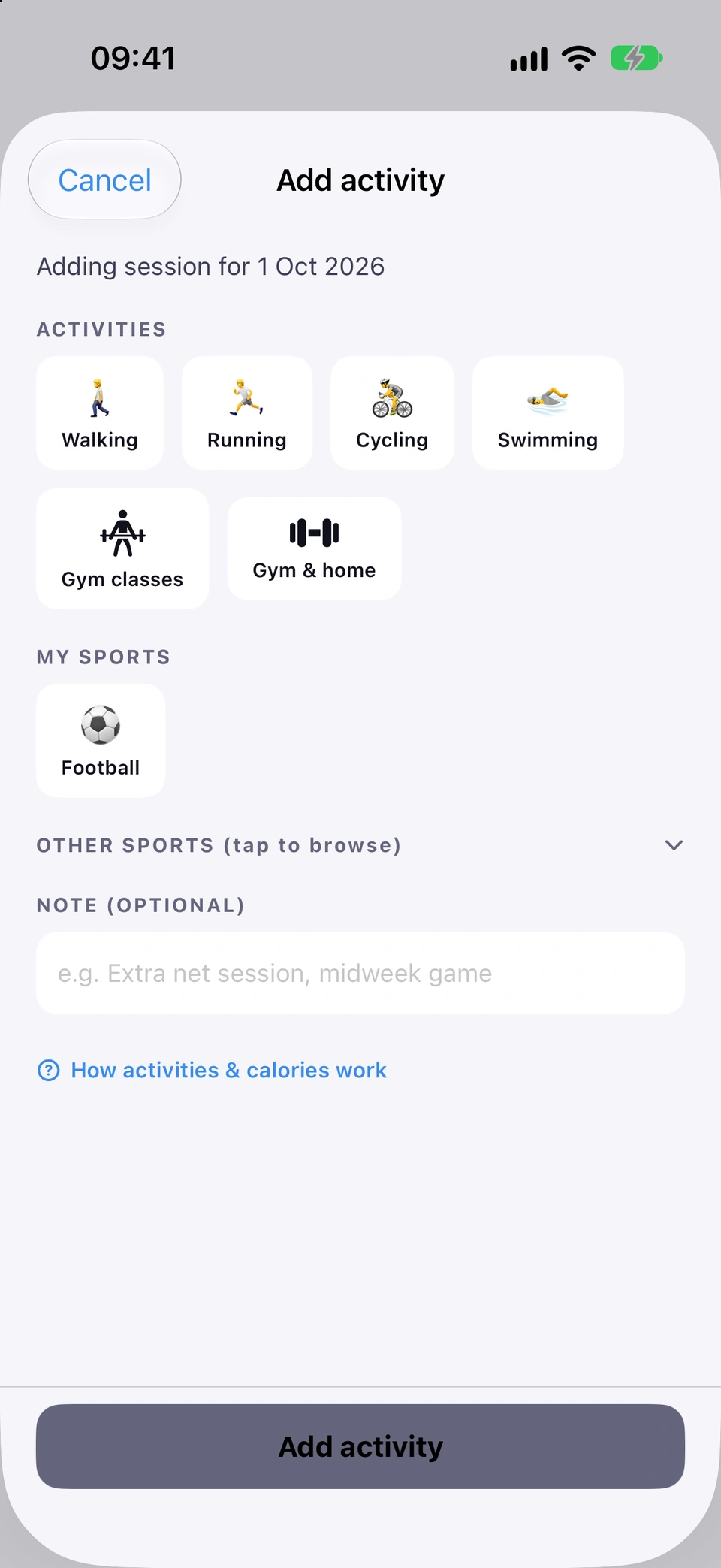
Adding an activity.On the Plan tab, tap Add activity.
Pick a quick activity (Walking, Running, Cycling, Swimming), or tap the Gym classes or Gym & home tile — see Gym classes search and Gym & home workouts.
Or open OTHER SPORTS (tap to browse) to browse and pick any sport.
Adjust the duration (and distance, for a run or walk); the estimated bonus updates as you go, or turn on Override to type your own.
Tap Add activity at the bottom to save it.
Tips
Your planned gym session is already counted — Add activity is for extra or unplanned work, not the session already on your plan.
Search gym class names and log one — calories scale to your weight, or add a custom class.
WhereAdd activity›Gym classes
What it is
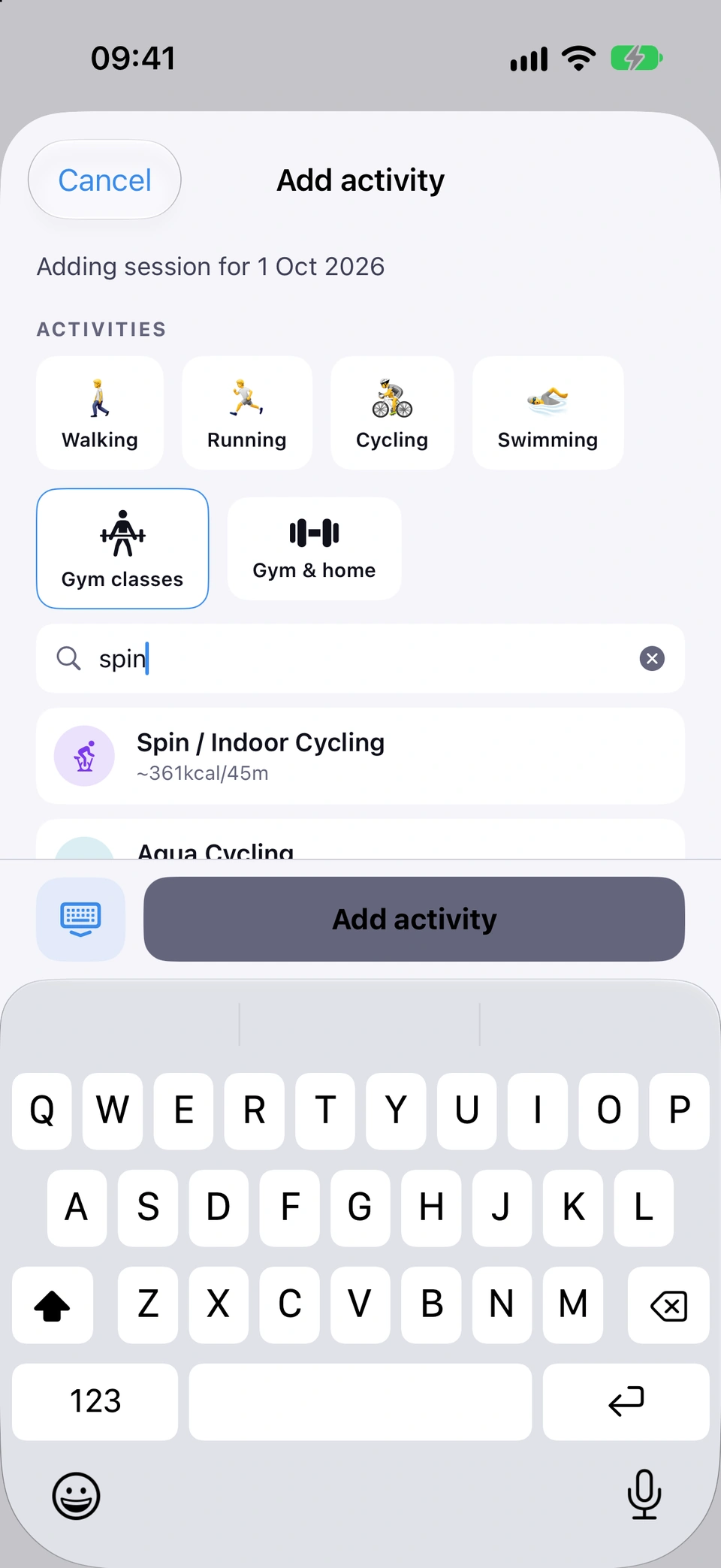
Under Gym classes in Add activity, search a class by name (spin, bodypump, and more) and its calories scale to your weight; or add a custom class if yours isn't listed.
Why it helps
So a class you actually take is one search away, priced for your own weight rather than a generic figure.
How to use it
Searching gym classes.In Add activity, tap the Gym classes tile.
Type the name you'd actually call it into Search classes…, for example spin or bodypump.
Tap a result, adjust the duration if you need to, then tap Add activity.
Can't find your class? Use the custom option at the end of the list.
Tips
Pilates, Yoga and Barre also have their own entries in your sports list, with their own sessions.
Meditation / Breathwork records the practice and shows its length without a calorie figure.
Good to know
Calorie estimates for the Pilates, Yoga, Hot Yoga, Power / Flow Yoga, Barre, Stretch / Mobility, Tai Chi and Meditation sessions follow the same method as every sport, and sessions you logged earlier are priced the same way.
Log an extra or unplanned gym or home session — your planned session is already counted.
WhereAdd activity›Gym & home
What it is
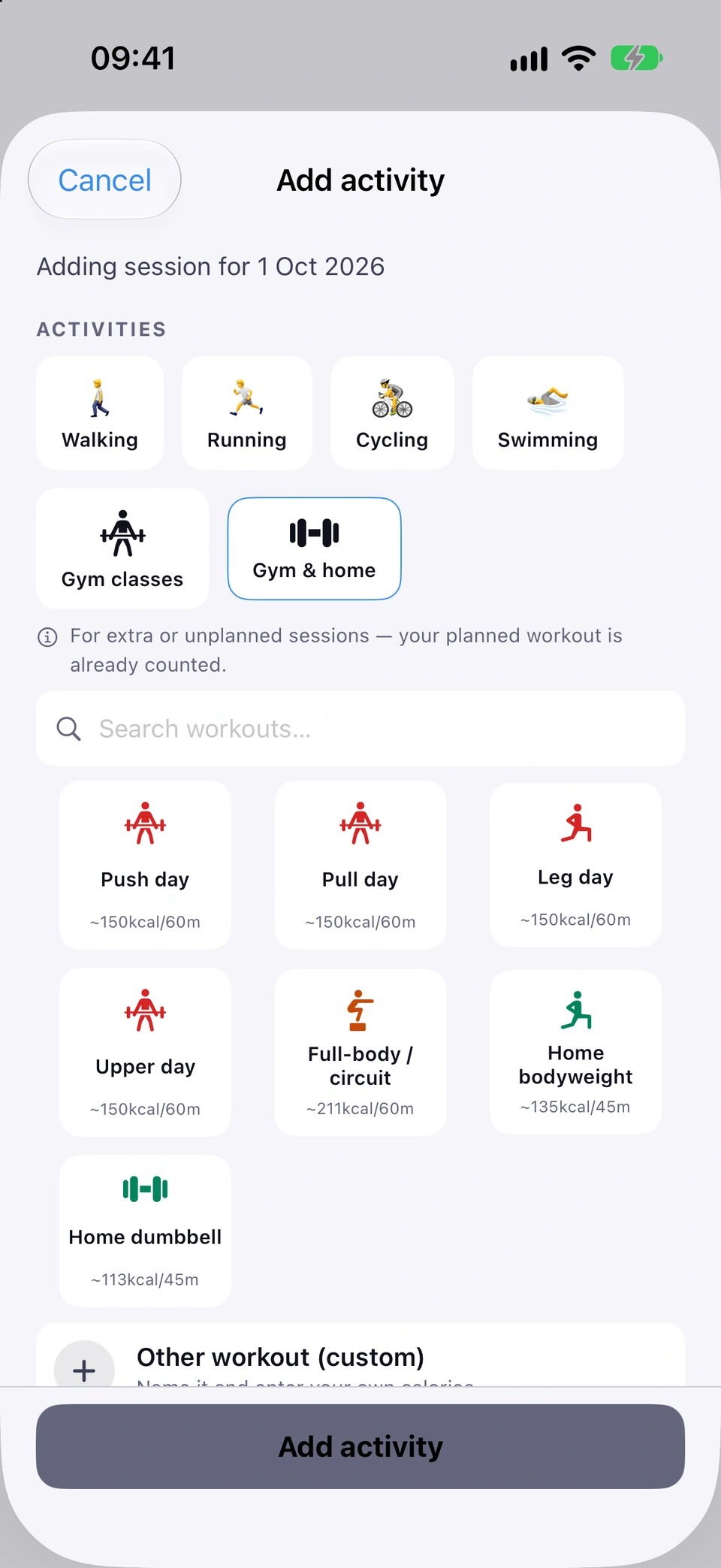
Under Gym & home in Add activity, log an extra or unplanned gym or home session by type (Push, Pull, Legs, Upper, a full-body/circuit, home bodyweight or home dumbbell), by search, or as a custom workout.
Why it helps
For the training you did on top of your plan — your scheduled gym day is already counted, so this is only for the extra.
How to use it
Logging an extra gym or home session.In Add activity, tap the Gym & home tile.
Pick a type, or type the name you use into Search workouts…, for example ppl, leg day or calisthenics.
Adjust the duration if needed, or turn on Override to enter your own figure, then tap Add activity.
Good to know
This is for extra or unplanned work — your already-planned gym session doesn't need logging here, and nothing stops it being double-counted if you do.
Why logging an activity raises what you can eat, while Apple Health separately tracks what you burn.
WhereAdd activity›How activities & calories work
What it is
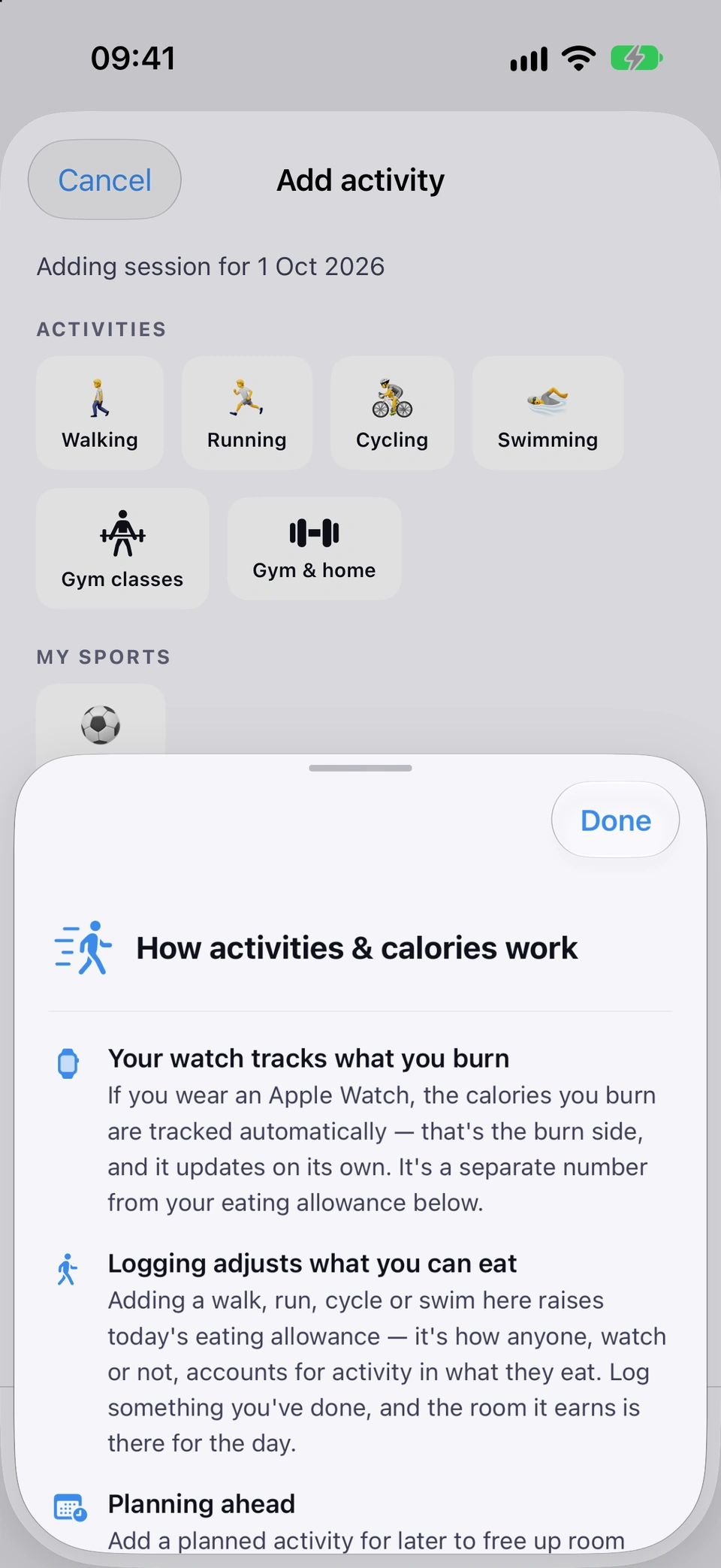
How activities & calories work explains that logging an activity here raises your eating allowance for the day, while Apple Health separately records the calories you burn — two sides of one ledger that are meant to offset, not add together.
Why it helps
It's easy to assume logging an activity double-counts with your watch's own burn figure — this explains why it doesn't.
How to use it
How activities & calories work.In Add activity, tap How activities & calories work near the bottom.
Set your recurring weekly gym rotation and each sport's match and practice days.
WherePlan›Edit schedule
What it is
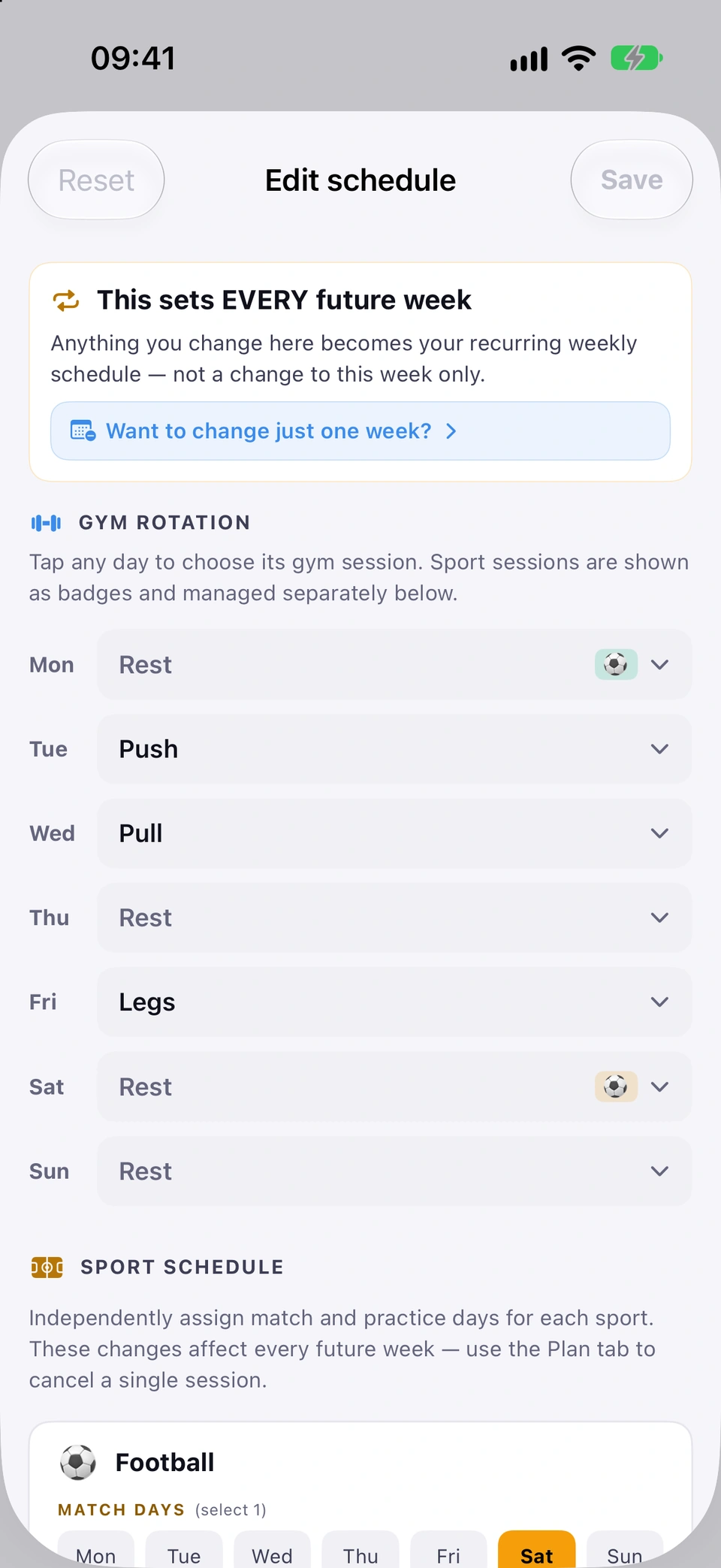
Edit schedule sets your recurring weekly gym rotation and, for each sport, which days it holds matches and practices. Changes apply to every future week; to change just one week, cancel that day's session instead.
Why it helps
It's where you set the pattern your plan repeats, separately from a one-off change to a single day.
How to use it
Editing your weekly schedule.On the Plan tab, tap Edit schedule.
Under GYM ROTATION, tap any day to choose its gym session.
Under SPORT SCHEDULE, set match and practice days for each sport in season.
Tap Save to apply the changes to every future week, or Reset to undo them.
Tips
To skip a single day rather than change the pattern, cancel that day's session in SPORT & ACTIVITY instead.
Good to know
Only sports in season this week are shown — off-season sports are managed in Sport Settings.
Explains Edit schedule versus Add activity versus cancelling a single session.
WherePlan›MY SCHEDULE & SPORT›ⓘ
What it is
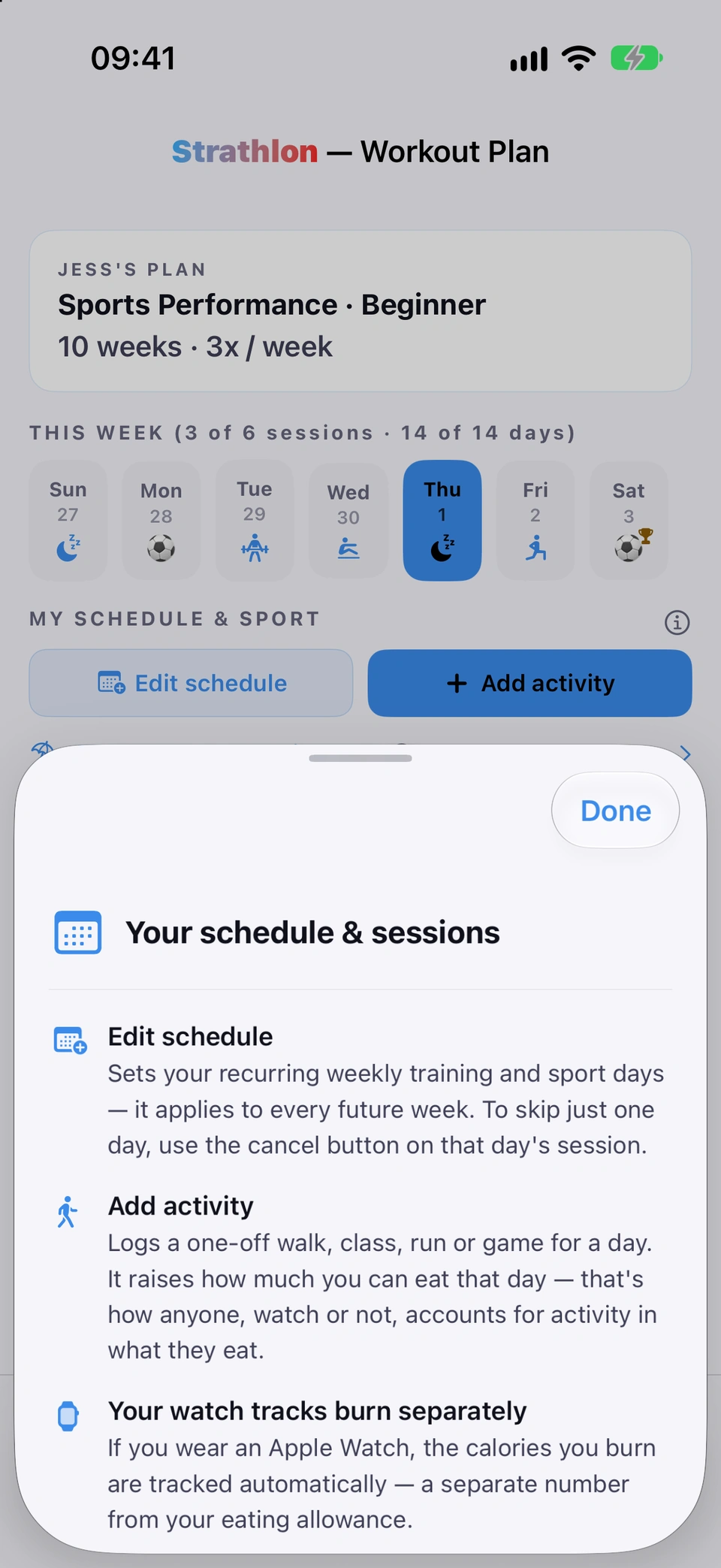
The ⓘ beside MY SCHEDULE & SPORT opens Your schedule & sessions, explaining what Edit schedule does, what Add activity does, and that your watch tracks burn separately from either.
Why it helps
The three ways to change your schedule can look similar — this says which one to reach for.
How to use it
The schedule & sessions explainer.On the Plan tab, tap the ⓘ beside MY SCHEDULE & SPORT.
Add, remove and configure every sport you play — sessions, durations, season and intensity.
If you play a sport
WhereSettings›NUTRITION & SPORT›Edit
What it is
Sport Settings is where you add, remove and configure each sport: matches and practices per week, durations, types, preferred days, season, intensity and custom sessions. Pilates, Yoga and Barre are sports in their own right, so you add them here like any other.
Why it helps
It's the one place to set up everything about how a sport factors into your plan and your calorie targets.
How to use it
On Settings, find NUTRITION & SPORT and tap Edit on the sports card.
Adjust a sport's sessions, durations, days, season or intensity.
Tap Add a sport to add another, or the remove control to drop one. Search the list by the name you use, for example reformer, vinyasa or ballet fitness.
With more than one sport, reorder them under SPORT PRIORITY.
Tips
Pilates, Yoga and Barre sit under Gymnastics & Fitness in the sports list, each with its own sessions and calorie estimates.
With more than one sport, drag to reorder which one your plan treats as primary.
If you play a sport
WhereSettings›Sport Settings›SPORT PRIORITY
What it is
With more than one sport configured, drag to reorder them under SPORT PRIORITY in Sport Settings. On the Sports Performance goal, your top two shape your gym work. Calorie bonuses follow each session's size, not its priority.
Why it helps
Which sport is first decides which two your gym work is built around when Sports Performance is one of your goals.
How to use it
Open Sport Settings and find SPORT PRIORITY (shown once you have more than one sport).
Drag a sport up or down to change its place — top is your primary.
Good to know
It doesn't decide the calorie bonus on a multi-session day — that follows each session's own size, not its order in this list.
Tell Strathlon how hard you play compared with an average player, to tune that sport's calorie bonus.
If you play a sport
WhereSettings›Sport Settings›a sport card›INTENSITY
What it is
Each sport's INTENSITY — Light, Standard or High — scales the calorie bonus it earns. Picking Light or High shows the percentage of the standard estimate it sets.
Why it helps
Not everyone plays a sport at the same intensity — this lets the calorie bonus reflect how hard you actually go.
How to use it
Open Sport Settings and find INTENSITY on a sport's card.
Choose Light, Standard or High to match how hard you actually play.
A summary of how your schedule, fuelling, recovery and gym work are shaped by your sport.
If you play a sport
WhereSettings›Replay Sport Summary
What it is
How your plan is tuned for sport summarises how your schedule, calorie and carb targets, recovery and gym work are all shaped around your sport, plus the sport-specific moves woven into your lifts.
Why it helps
It's a plain explanation of what makes your plan different from a generic one, in one place.
How to use it
On Settings, tap Replay Sport Summary.
Tips
It also appears on its own, once, right after your plan is first tuned to a sport — replaying it just shows it again.
Good to know
Only shown once Sports Performance is one of your goals and you have a sport configured.
A planned sport session shows as done automatically once a matching Apple Health workout appears, or when you mark it yourself.
If you play a sport
WhereTracker›a day›SPORT SESSIONS›Mark as done
What it is
A planned sport session on the Tracker shows as done once a matching Apple Health workout exists for that day, or when you tap Mark as done yourself for today — both are reversible.
Why it helps
Your sessions are confirmed the same way whether your watch caught them automatically or you're telling Strathlon by hand.
How to use it
On the Tracker tab, tap a day to open it.
Under SPORT SESSIONS, today's planned sessions show Mark as done.
Tap it to confirm you did the session — it moves to your recorded sessions with Undo — not done after all.
Good to know
Only offered for today's own sessions — a matching Apple Health workout is the only way a past day's session is confirmed.
Save break dates and tell Strathlon whether it's a holiday or you just can't train — your plan pauses either way.
WherePlan›On a break or catching up?
What it is
On a break or catching up? on the Plan tab saves a range of dates and asks what kind of break it is — I'm on holiday or I can't train — since that sets what you eat. Either way, any sport you've planned or activity you log on those days is paid on top of the break's calories. Your plan pauses for those days with no missed-day marks.
Why it helps
A holiday and a busy work week want different calorie targets — this asks once and sets the right one, rather than silently guessing.
How to use it
On the Plan tab, tap On a break or catching up?.
Set your From and To dates.
Choose I'm on holiday or I can't train — the blurb under each says what it sets your calories to, plus any sport you've planned or activity you log.
Tap Save my break.
Tips
Every break pays your planned sport and any activity you log on top of its calories, but not a gym session you're not doing. A break saved before the sheet asked what kind keeps the base it had (your training-day calories on a gym day, rest-day calories otherwise), with the day's sport added on top. Cancel or delete a planned sport session and that day drops back to the break's plain figure.
Under YOUR BREAKS, each saved break names its allowance, for example · can't train, rest-day calories + sport.
Good to know
Your plan pauses rather than skips forward — nothing you've earned is lost, and you pick up where you left off.
Pick days you trained outside the app and what you did, and they're logged toward your phase progress.
WherePlan›On a break or catching up?›I trained while away
What it is
I trained while away lets you pick past days (up to the last 21) and say what you did — Gym, Sport, Walk / activity or Other — with an optional duration, and they're logged.
Why it helps
So training you did off-app or without your phone still counts toward moving through your programme.
How to use it
Open On a break or catching up? and switch to I trained while away.
Choose what you did — Gym, Sport, Walk / activity or Other.
Optionally add a duration.
Tap a day to pick it, then tap the save button to log it.
Good to know
Only a Gym entry counts toward your phase progression — a Sport, Walk or Other entry is recorded but doesn't move your phase forward.
None of these appear in your streaks, charts or analytics — a session captured automatically by a guided workout or your Apple Watch is the one that does.
On a day inside a saved break, the Plan tab shows a banner — On a break 🌴 if it's today, or a lighter note for a past or upcoming break day — and the Nutrition tab shows Holiday — Today's Break Allowance on a holiday.
Why it helps
So it's obvious at a glance that today's numbers are your break allowance, not a typical day's target.