
- Home
- User guide
- Settings, notifications & tips
Settings, notifications & tips
Your profile, goal and training settings, food preferences, voices, notifications and tips. Checked against build 266.
Your name, photo and profile summary
The card at the top of Settings — your photo, your name and a one-line summary of your goal and experience.
WhereSettingstop card
What it is
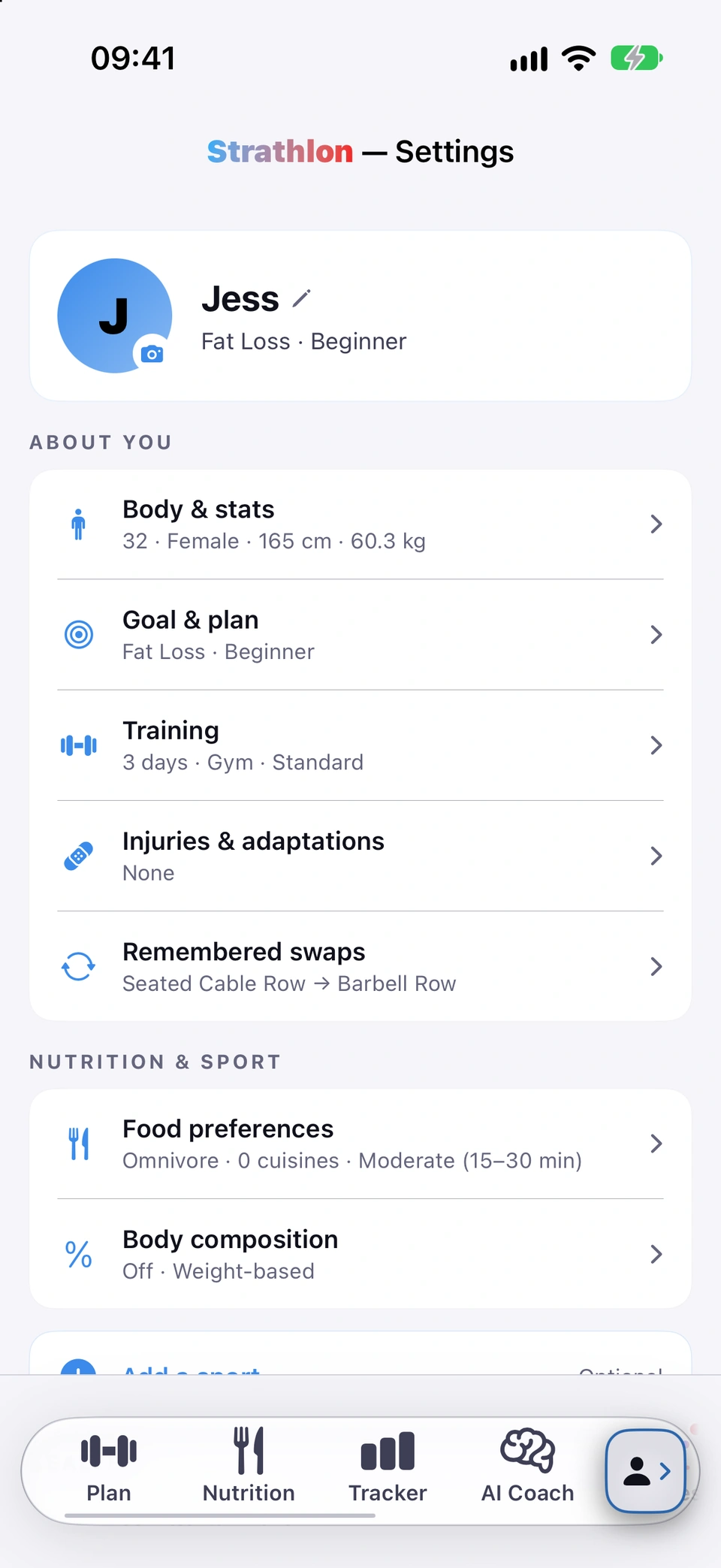
The top card on the Settings tab shows your profile photo, your name and, underneath, your goal and training experience (for example "Fat loss · Intermediate").
Why it helps
It is your at-a-glance confirmation that Strathlon has the right person and the right goal, and it is the fastest way to fix your name or photo.
How to use it
- On the Settings tab, the card at the very top shows your photo and name.
- Tap your name (next to the pencil icon) to open Your name and edit it.
- Tap your photo (next to the camera icon) to change or crop it — see Change your profile photo.
Good to know
- Your name is part of the profile your AI coach is sent with each message (see What your AI coach can see), and of your iCloud backup while iCloud backup is on (see iCloud backups).
Change your profile photo
Tap your photo on Settings to pick a new one from your library and crop it.
WhereSettingstop cardyour photo
What it is
Tapping your photo on the profile card opens your photo library, then a crop screen so you can position and frame the picture before it is saved.
Why it helps
It personalises the profile card at the top of Settings.
How to use it
- On Settings, tap your profile photo (or the camera badge on it) at the top of the screen.
- Choose a photo from your library.
- Drag and pinch to position it in the crop square, then confirm to save it.
Good to know
- The photo is stored on this iPhone.
Updated in build 265 · What's new
↑ Back to topBody & stats
Edit your age, biological sex, hormone therapy, height, weight, resting heart rate, VO2 max and units.
WhereSettingsABOUT YOUBody & stats
What it is
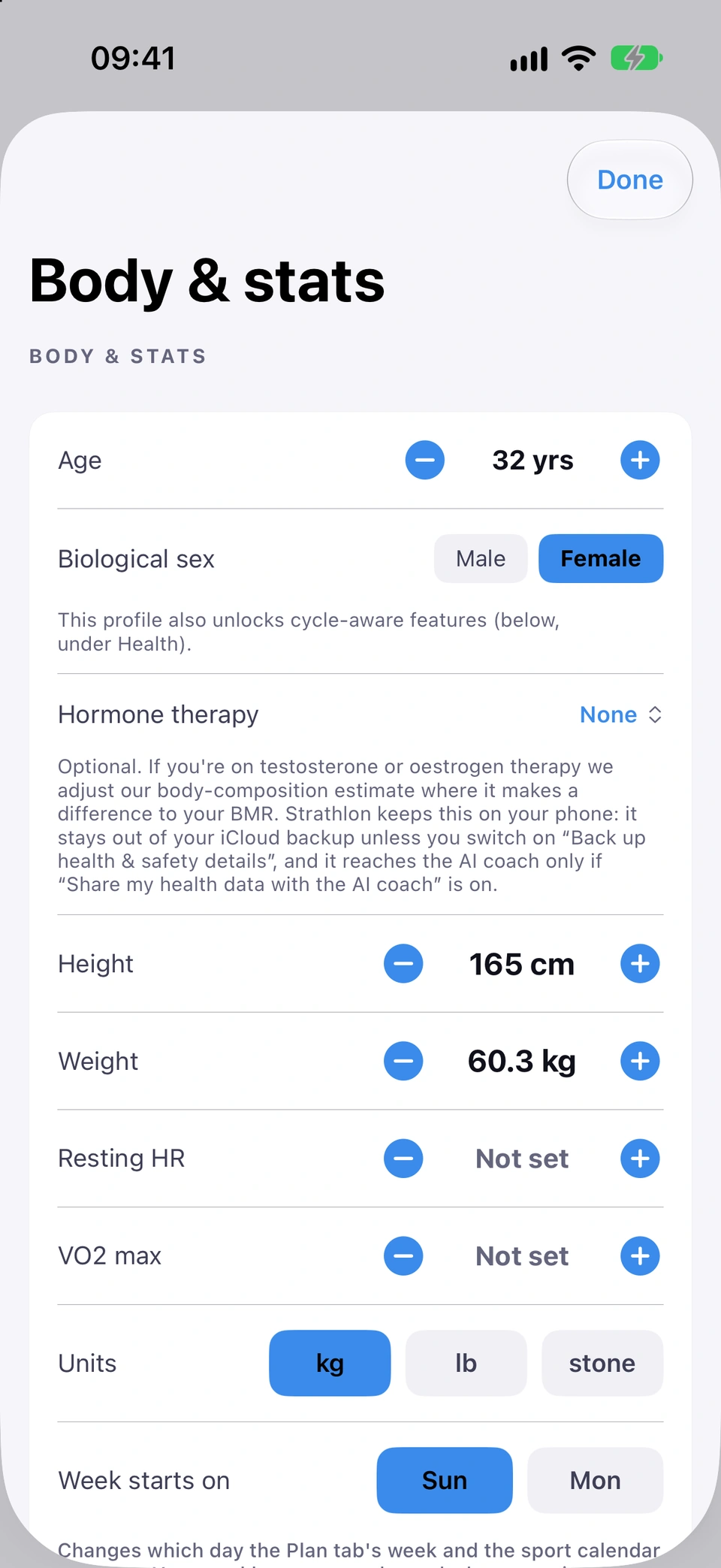
The Body & stats sheet holds the personal figures Strathlon's calorie, BMR and cycle-related calculations are built from: age, biological sex, an optional hormone-therapy answer, height, weight, resting heart rate and VO2 max, plus your units and the day your week starts on.
Why it helps
These are maths inputs, not labels — keeping them current keeps your calorie targets, BMR and (where it applies) cycle-aware features accurate.
How to use it
- On Settings, under ABOUT YOU, tap Body & stats.
- Use the − and + buttons to change Age, Height and Weight.
- Tap Male or Female to set Biological sex.
- Tap the Hormone therapy menu to record HRT for menopause, testosterone or oestrogen therapy, or leave it at its default.
- Use the − and + buttons on Resting HR and VO2 max if you know them.
- Choose your units under Units.
Tips
- Biological sex is a maths input for your calorie formula, not a label — Strathlon uses it to choose between formulas derived separately for male and female bodies.
Good to know
- Hormone therapy is optional. Testosterone or oestrogen therapy adjusts your resting-calorie (BMR) estimate where it makes a difference, and HRT for menopause keeps the standard estimate; if you've given a body-fat % or lean mass, no adjustment is needed.
- If you set up your profile before build 203 with sex recorded as "Other", you're asked to pick male or female once — see Sex recorded as "Other" (one-time question).
Sex recorded as "Other" (one-time question)
A one-time sheet asking legacy "Other" profiles to pick male or female, since Strathlon's calorie maths needs one of the two.
WhereAutomatic, on opening the appOne quick question
What it is
If your profile was set up before build 203 with sex recorded as "Other", Strathlon shows a one-time sheet, One quick question, asking you to pick Male or Female (with an optional hormone-therapy note alongside it).
Why it helps
Strathlon's calorie and BMR formulas are derived separately for male and female bodies; an "Other" profile was silently defaulting to the male formula, which may not have fitted.
When it happens
Shown once, automatically, to any profile still recorded as "Other" from before build 203 — it does not appear again once answered.
Tips
- This is a maths input, not a label — you can still record hormone therapy on the same sheet if it applies.
Updated in build 268 · What's new
↑ Back to topWeek starts on
Choose which day your Plan week and sport calendar begin on.
WhereSettingsBody & statsWeek starts on
What it is
Two buttons, Sun and Mon, next to Week starts on on the Body & stats sheet choose which day the Plan tab's week and your sport calendar begin on. It starts on Sunday until you change it.
Why it helps
Lets your in-app week match the week you actually think in (for example a Monday-start or Sunday-start week), without disturbing your reports.
How to use it
- On Settings, open Body & stats.
- Next to Week starts on, tap Sun or Mon.
Good to know
- Your weekly reports and streaks keep running Monday to Sunday regardless of this setting, so no past week is relabelled.
Goal & plan
See your current goal and experience level, and set or change your goal weight.
WhereSettingsABOUT YOUGoal & plan
What it is
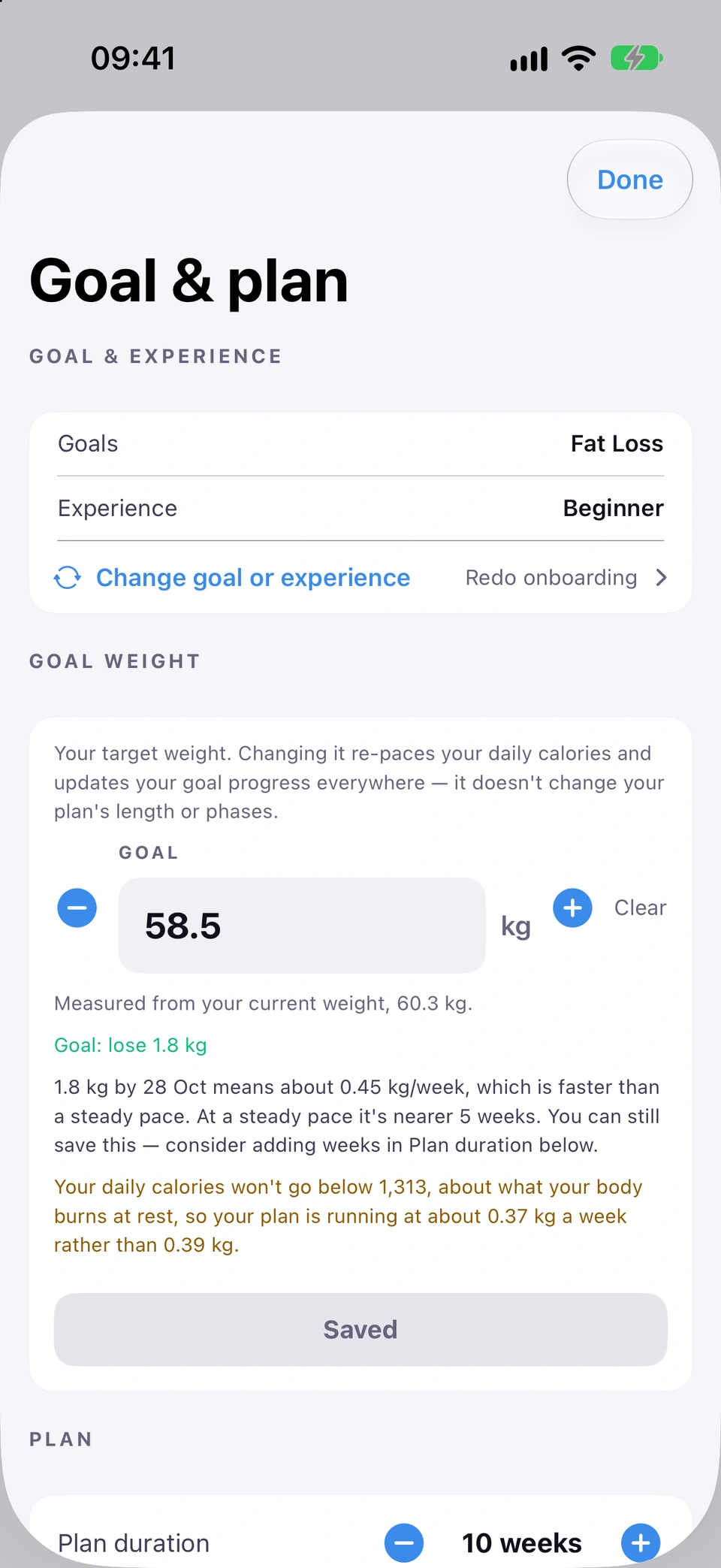
The Goal & plan sheet shows your Goals and Experience (these can't be edited in place), your GOAL WEIGHT, and your Plan duration.
Why it helps
Your goal weight re-paces your daily calories and your goal progress everywhere it's shown; goal and experience shape your whole plan, so they're changed through a guided redo rather than edited in place.
How to use it
- On Settings, under ABOUT YOU, tap Goal & plan to see your current Goals and Experience.
- To change goal weight, use the stepper under GOAL WEIGHT — see Goal weight.
- To change your goal or experience itself, tap Change goal or experience — see Change goal or experience.
Good to know
- No goal weight is used while a pregnancy is recorded under Health & safety, so the sheet says there's nothing to set.
Updated in build 266 · What's new
↑ Back to topGoal weight
Set or edit the weight you're working towards; it re-paces your daily calories and every "X to go" figure.
WhereSettingsGoal & planGOAL WEIGHT
What it is
A stepper under GOAL WEIGHT on the Goal & plan sheet sets the weight you're aiming for. The line underneath reads Goal: lose amount, Goal: gain amount, Goal: hold at your current weight or Goal: reached, measured from your current weight.
Why it helps
Editing it re-paces your daily calories to the new target (when your goal type is paced to one) and updates your goal progress everywhere it's shown — without changing your plan's length or phases.
How to use it
- On Settings, open Goal & plan.
- Under GOAL WEIGHT, use the stepper to set your target.
- Check the line underneath (for example Goal: lose 6 kg): it confirms the direction and amount from your current weight.
Tips
- A muscle-gain, performance, general-fitness or recomposition goal, and a maintenance phase, keep their calories off the goal weight — the sheet tells you when your calories aren't paced to a target.
Good to know
- Starting weight is not touched by editing this — re-anchoring where you started is what Restart my plan does, not this editor.
- No goal weight is used while a pregnancy is recorded.
Updated in build 266 · What's new
↑ Back to topChange goal or experience
Redo onboarding to change your goal or experience level — your tracking history is kept and a backup is made first.
WhereSettingsGoal & planChange goal or experience
What it is
Change goal or experience on the Goal & plan sheet takes you through onboarding again so you can change your goal (for example fat loss to muscle gain) or your training experience.
Why it helps
Goal and experience reshape your whole plan, so rather than an in-place edit that could leave the plan inconsistent, Strathlon reuses the guided onboarding flow, which already knows how to rebuild a plan safely.
How to use it
- On Settings, open Goal & plan.
- Tap Change goal or experience.
- Confirm Redo onboarding on the prompt.
- Go through onboarding again with your new goal or experience.
Tips
- Your tracking history is kept, and a backup is made automatically before onboarding starts.
Training settings
Set training days per week, gym intensity, equipment and preferred gym days.
WhereSettingsABOUT YOUTraining
What it is
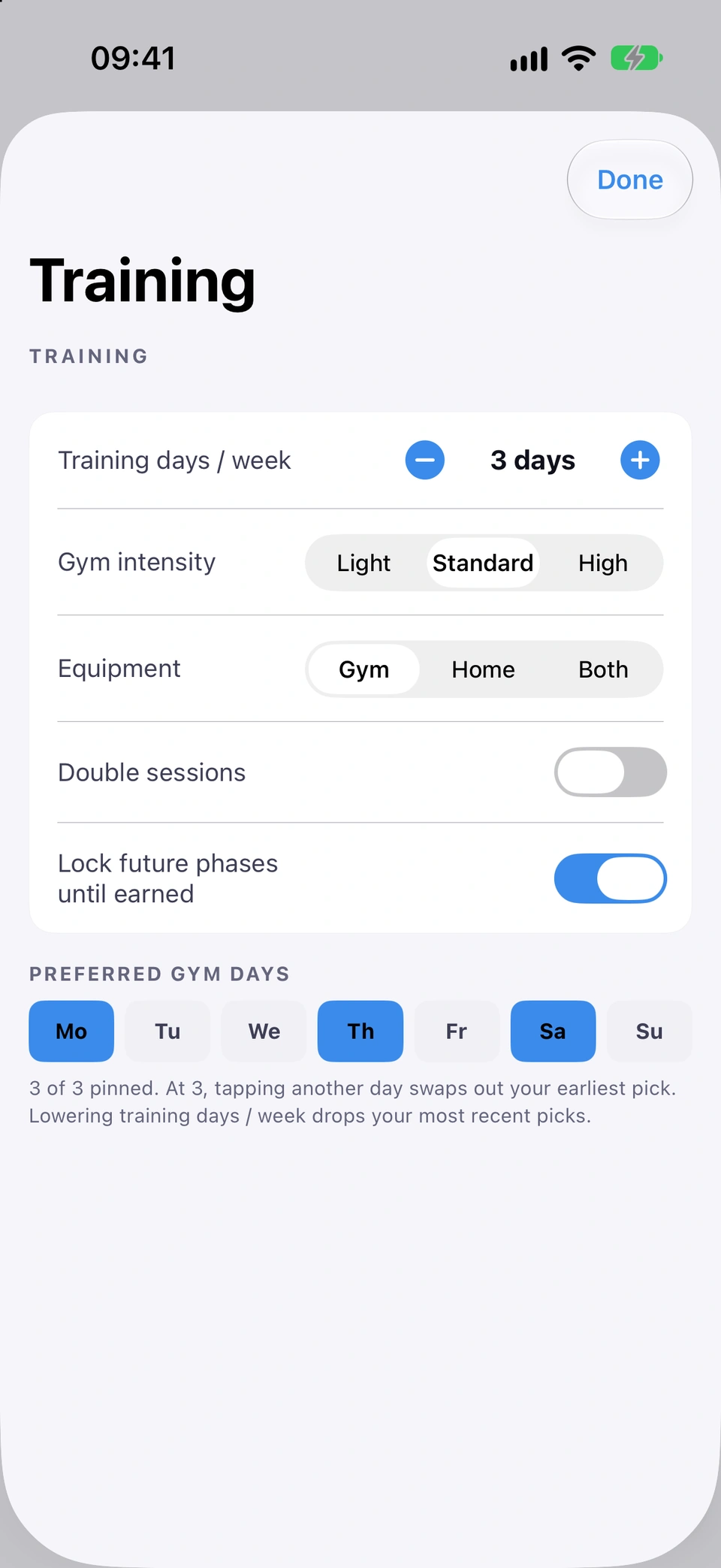
The Training sheet sets Training days / week, Gym intensity (Light, Standard or High), your Equipment, Double sessions, whether future phases stay locked until earned, your home equipment and your preferred gym days.
Why it helps
These drive how your weekly plan is built — how many gym sessions it places, how hard they're loaded, and what equipment your exercises assume.
How to use it
- On Settings, under ABOUT YOU, tap Training.
- Step Training days / week to the number you want.
- Tap Light, Standard or High under Gym intensity.
- Choose your Equipment from the picker.
Tips
- If your sport takes some of your free days, the plan may place fewer gym sessions than you asked for — a note tells you when that happens and how many it actually scheduled.
- Gym intensity scales the estimated burn Strathlon shows for your gym sessions, on the Plan tab, your Apple Watch and the Lock Screen: Light lowers the estimate and High raises it. It's a display figure only and never changes your calorie targets or your sessions.
Updated in build 186 · What's new
↑ Back to topFood preferences
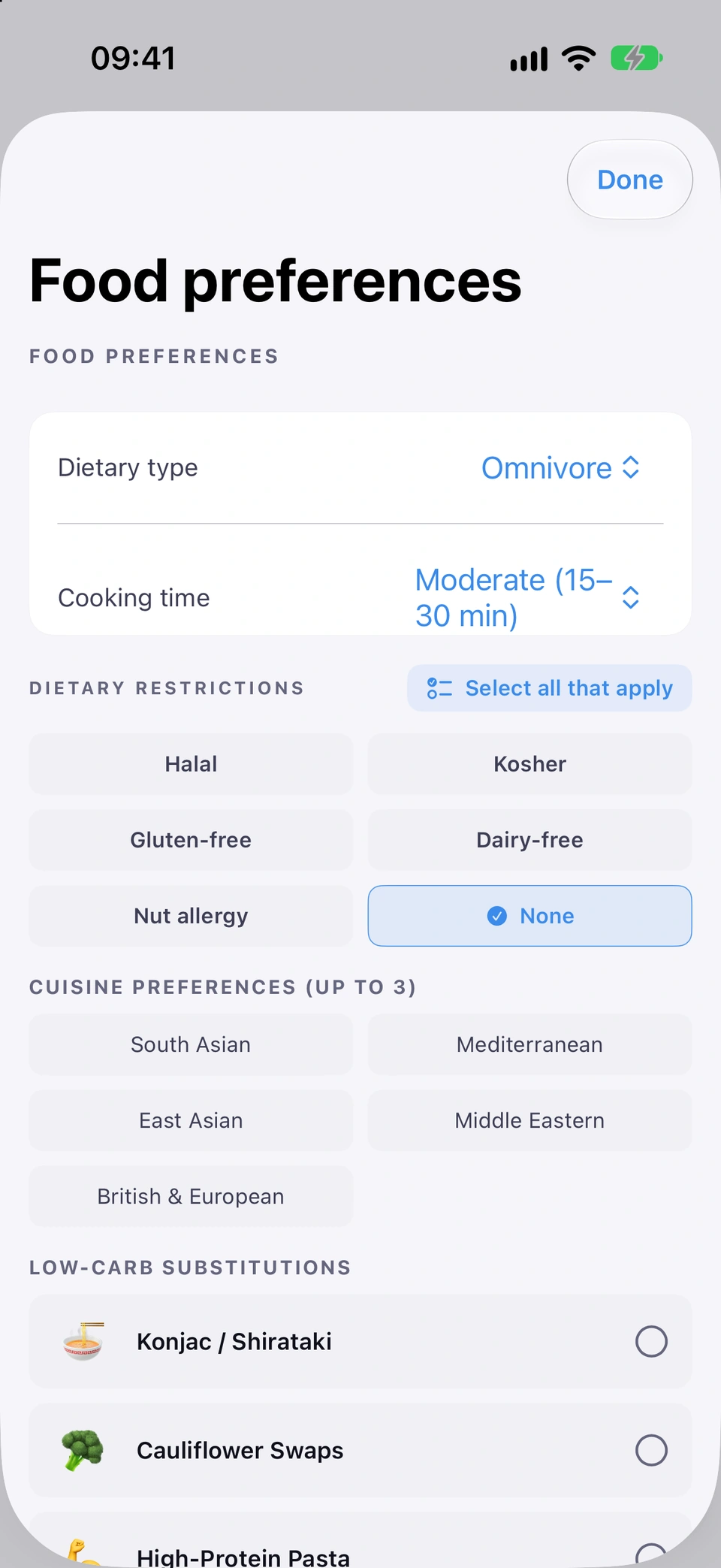
Set dietary type, cooking time, up to 3 cuisine preferences, and your dietary restrictions and allergies.
WhereSettingsNUTRITION & SPORTFood preferences
What it is
The Food preferences sheet holds your Dietary type, your Cooking time, your dietary restrictions and food allergies, up to three cuisine preferences and your LOW-CARB SUBSTITUTIONS.
Why it helps
They shape the meal plans and food suggestions you get, and your meal plans and the coach treat your food allergies as hard exclusions.
How to use it
- On Settings, under NUTRITION & SPORT, tap Food preferences.
- Pick your Dietary type and Cooking time.
- Set your dietary restrictions and food allergies in the grid below them.
- Tap up to three tiles under CUISINE PREFERENCES (UP TO 3).
Tips
- You can change your dietary restrictions here any time — not just during onboarding.
Updated in build 266 · What's new
↑ Back to topBody composition
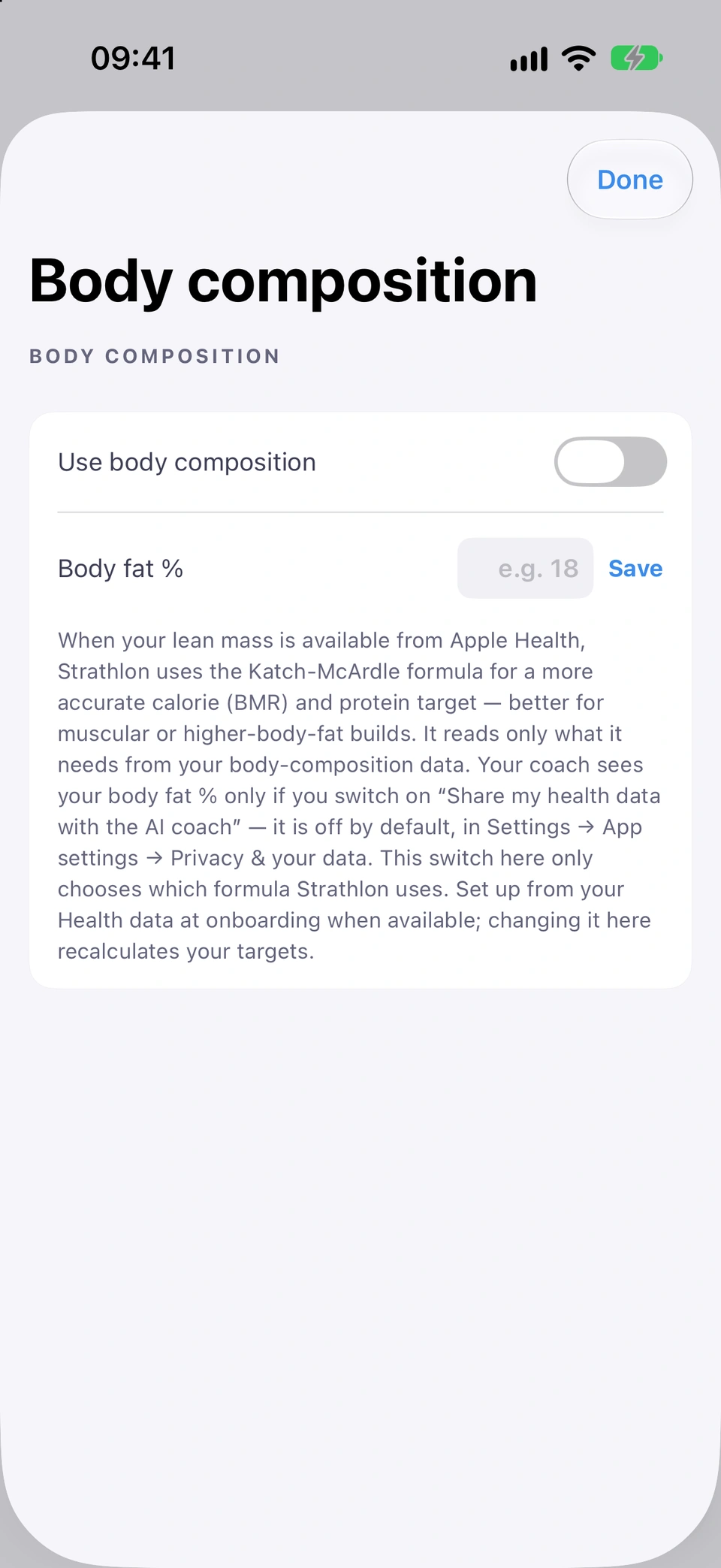
Turn on body-composition-based targets and enter or read your lean body mass and body-fat percentage.
WhereSettingsNUTRITION & SPORTBody composition
What it is
The Body composition editor has a toggle to Use body composition for your calorie targets, and shows your lean body mass, its source, and lets you type in a body-fat percentage.
Why it helps
Body composition (lean mass and body fat) gives a more precise BMR than weight alone, via the Katch–McArdle formula, once Strathlon has a lean-mass reading from a scale, wearable or your manual entry.
How to use it
- On Settings, under NUTRITION & SPORT, tap Body composition.
- Turn on Use body composition.
- Confirm Recalculate on the prompt to re-run your targets.
- Enter a Body fat % and tap Save if Apple Health has no lean-mass reading yet.
Good to know
- With no lean-mass reading in Apple Health and no manual body-fat entry, your weight-based estimate is used instead until one is available.
- When health sharing is on and you have a body-fat figure stored, it is included in what the AI coach sees about your body stats.
Added in build 47 · What's new
↑ Back to topYour targets
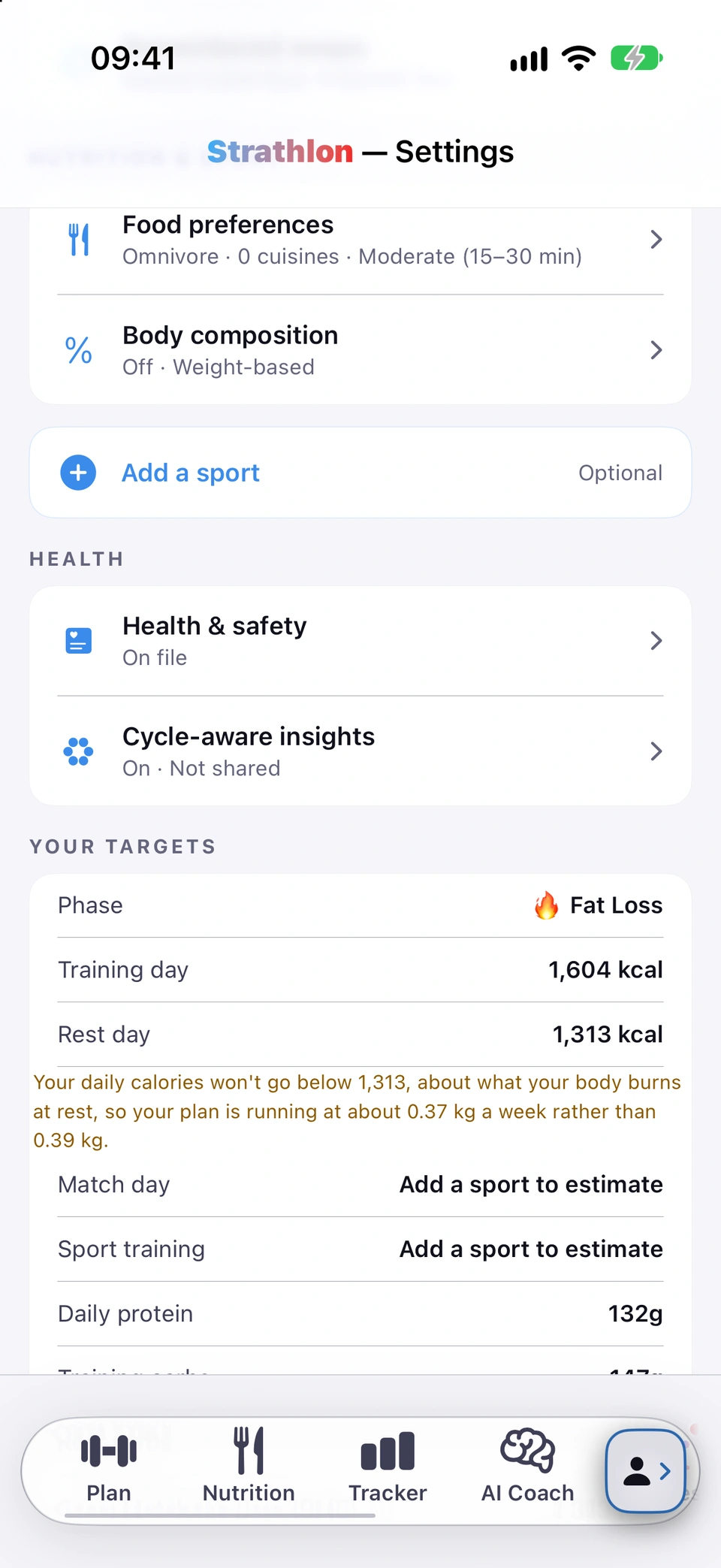
A read-only summary of your current calorie and macro targets, and the derived figures they're built from.
WhereSettingsYOUR TARGETS
What it is
YOUR TARGETS is the card on Settings that shows the targets your plan runs on: your training-day and rest-day calories, daily protein, training and rest carbs, and the figures behind them, such as your BMR, the BMR formula in use, your BMI, max heart rate and plan duration.
Why it helps
It's the one place to see the numbers your plan is actually running on. They are calculated from the rest of your profile, including your latest weigh-in.
How to use it
- On Settings, scroll to YOUR TARGETS. Every figure is calculated from your profile, so there is nothing to edit here.
- Tap the ⓘ next to Basal Metabolic Rate (BMR) or Body Mass Index (BMI) to see what that figure means for you.
Good to know
- While a pregnancy is recorded, Strathlon does not prescribe calories here — the card shows your status instead of a target.
- Every target shown is eased where a cycle-aware ease is active, so the figure you see is what actually applies today.
Updated in build 257 · What's new
↑ Back to topSearch settings
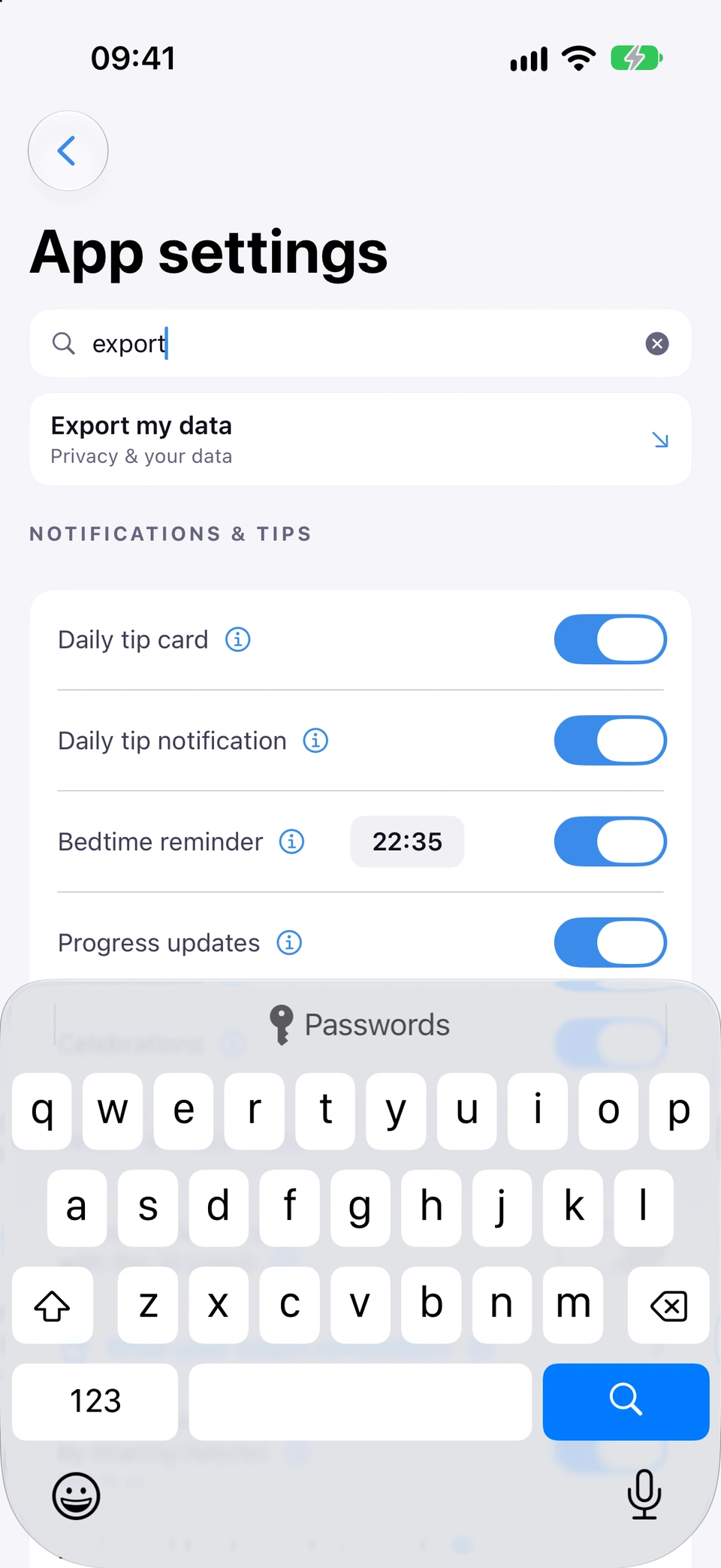
A search field at the top of App settings that jumps straight to the setting you're looking for.
WhereSettingsApp settingsSearch settings
What it is
A Search settings field at the top of App settings matches what you type against the settings on that screen and scrolls straight to the one you tap.
Why it helps
App settings holds many switches; searching is faster than scrolling and remembering where each one lives.
How to use it
- On Settings, tap App settings.
- Tap Search settings at the top and type a word, for example “export”, “iCloud”, “photos” or “voice”.
- Tap a result to jump straight to that setting.
Good to know
- Only settings shown to you can be found: one that isn't on your screen doesn't appear as a result.
Added in build 259 · What's new
↑ Back to topCoach voice
Choose a female or male coach voice, and pick which device voice reads your workout out loud.
WhereSettingsApp settingsWORKOUT VOICE
What it is
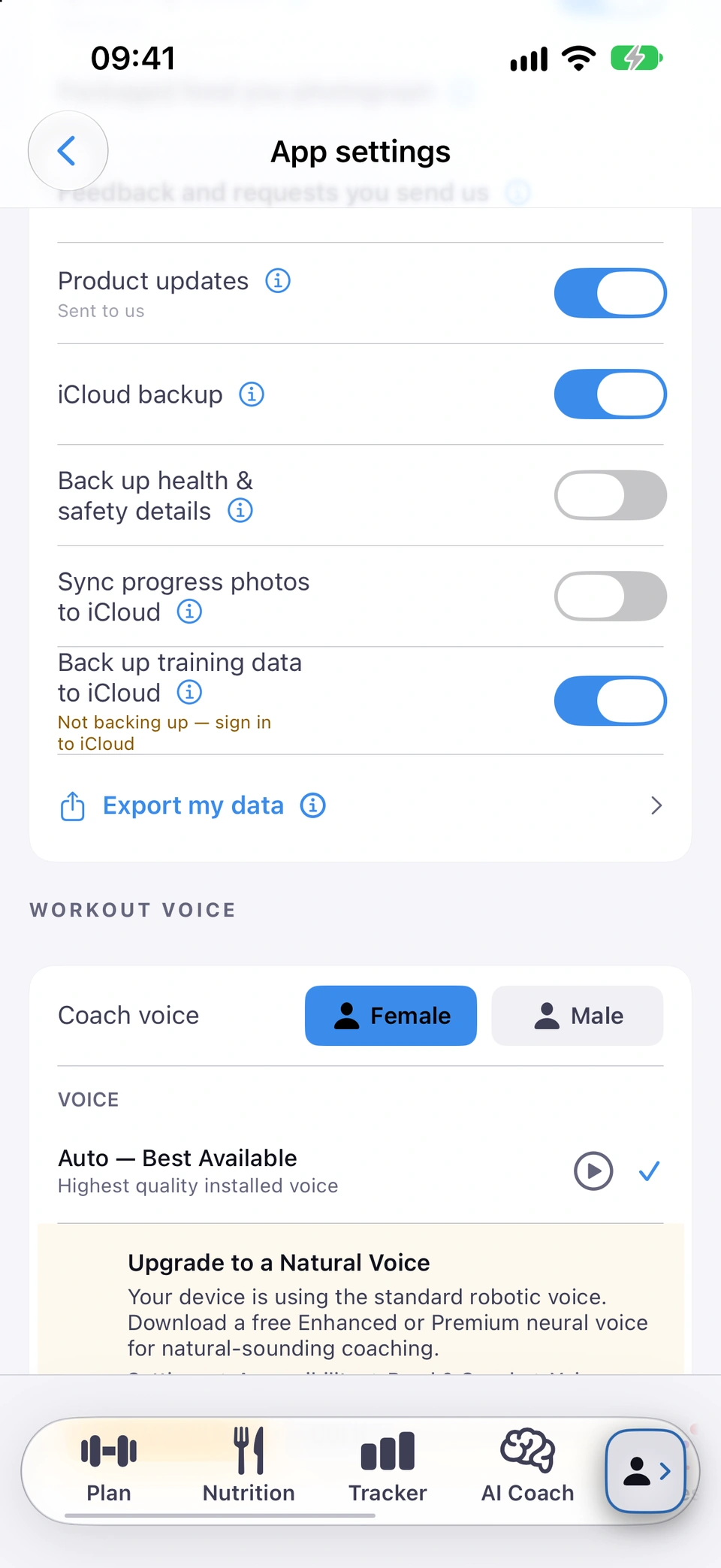
Under WORKOUT VOICE in App settings, Coach voice sets a female or male voice, and the list below it picks which of your iPhone's voices reads your workout, starting with Auto — Best Available.
Why it helps
Your coach speaks your workout aloud during a session — timers, exercise names, cues — so you can hear it without looking at your phone.
How to use it
- On Settings, tap App settings and scroll to WORKOUT VOICE.
- Tap Female or Male next to Coach voice.
- Choose a voice from the list, or leave it on Auto — Best Available.
Tips
- If your phone hasn't downloaded a natural-sounding system voice of the coach's gender yet, Strathlon shows a tip to download one — see Upgrade to a natural voice.
Upgrade to a natural voice
A banner that appears while your coach uses the standard robotic voice, with a one-tap route to download a free natural one.
WhereSettingsApp settingsWORKOUT VOICEUpgrade to a Natural Voice
What it is
When your device is still using the standard robotic voice, an Upgrade to a Natural Voice banner appears under Workout voice, with an Open Settings button and a note of the exact path to Apple's voice downloads.
Why it helps
Apple's free, higher-quality neural system voices sound far more natural than the default voice, and this banner is the shortest route to downloading one.
How to use it
- On Settings, tap App settings and look under WORKOUT VOICE for the Upgrade to a Natural Voice banner.
- Tap Open Settings. This opens your iPhone's own Settings app.
- Follow the path shown in the banner to find and download a voice.
- Come back to Strathlon and tap Got it to close the banner.
Updated in build 266 · What's new
↑ Back to topContent versions
See the version of each content stream (exercises, HIIT movements, tips, supplements, theme and more) that updates over the air.
WhereSettingsApp settingsABOUTContent versions
What it is
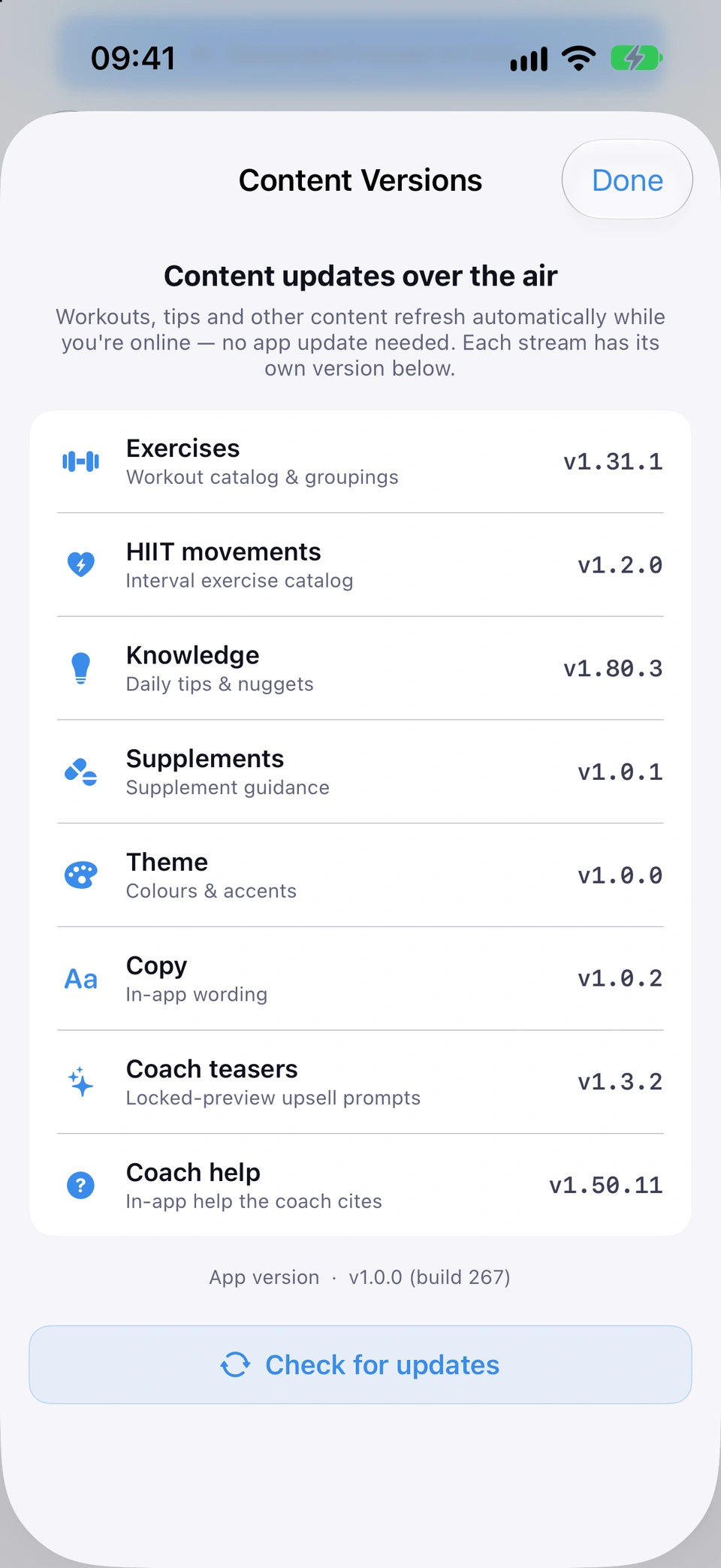
The Content versions sheet lists every content stream Strathlon updates over the air — Exercises, HIIT movements, Knowledge, Supplements, Theme, Copy, Coach teasers and Coach help — each with its own version.
Why it helps
These streams refresh automatically while you're online, with no app update needed; this sheet shows exactly what version of each you currently have, which is useful when reporting an issue.
How to use it
- On Settings, tap App settings.
- Scroll to ABOUT and tap Content versions to see every stream and its version.
Good to know
- A stream showing “built-in” is using the copy that came with the app, rather than a newer one downloaded over the air (updated without an App Store update).
Updated in build 226 · What's new
↑ Back to topNugget of the Day
A short fitness-science or app-tip card that appears once on your first open of the day.
WhereAutomatic, first open of the day
What it is
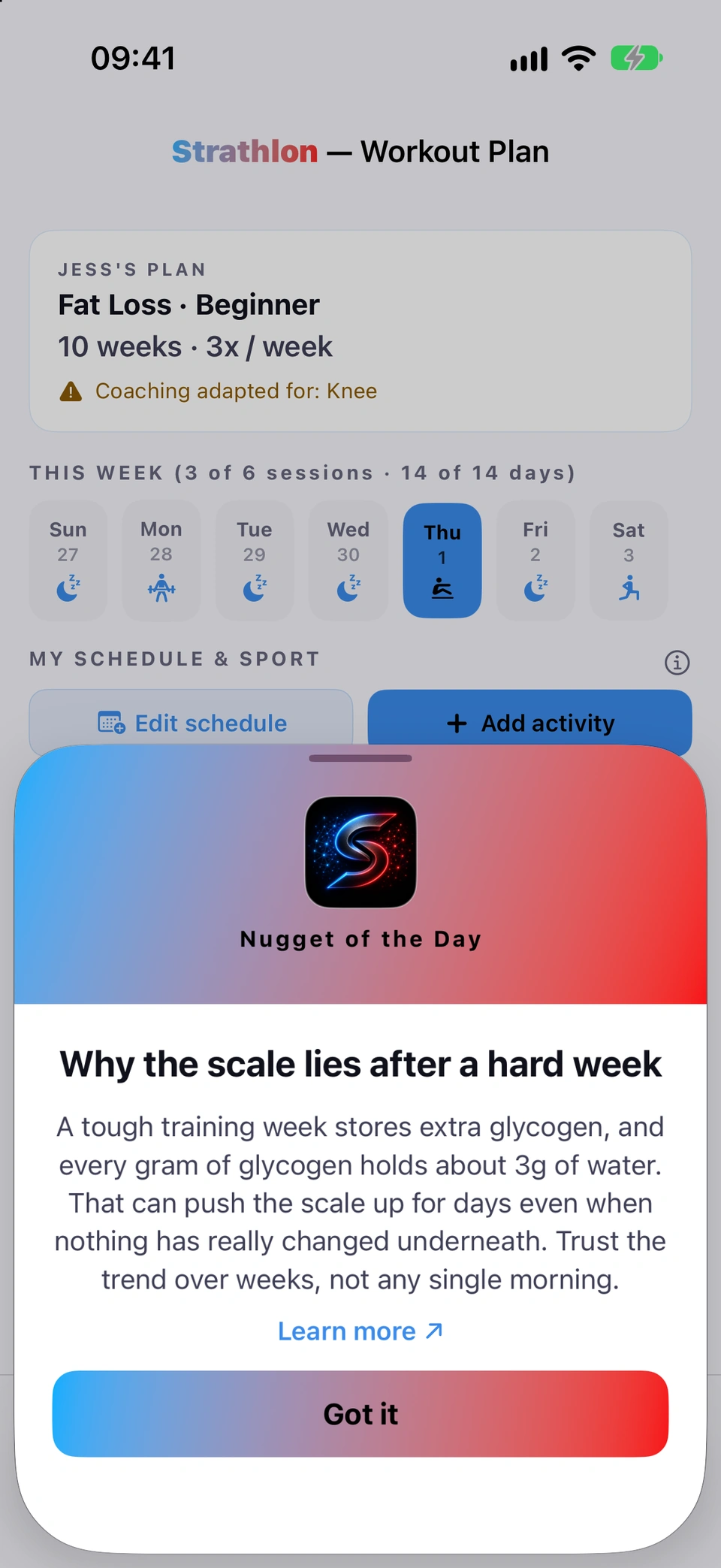
Nugget of the Day is a short card, shown once on the first time you open the app each day, sharing a fitness-science fact or an app tip.
Why it helps
A small, bite-sized piece of knowledge or a reminder of a feature you might not have found yet, without needing you to go looking for it.
When it happens
Shown once, the first time you open Strathlon on a given day, unless you've turned the daily tip card off in Settings (see Daily tip card and notification).
↑ Back to topDaily tip card and notification
Two separate switches — one for the daily tip card in-app, one for its push notification — plus a bedtime reminder.
WhereSettingsApp settingsNOTIFICATIONS & TIPS
What it is
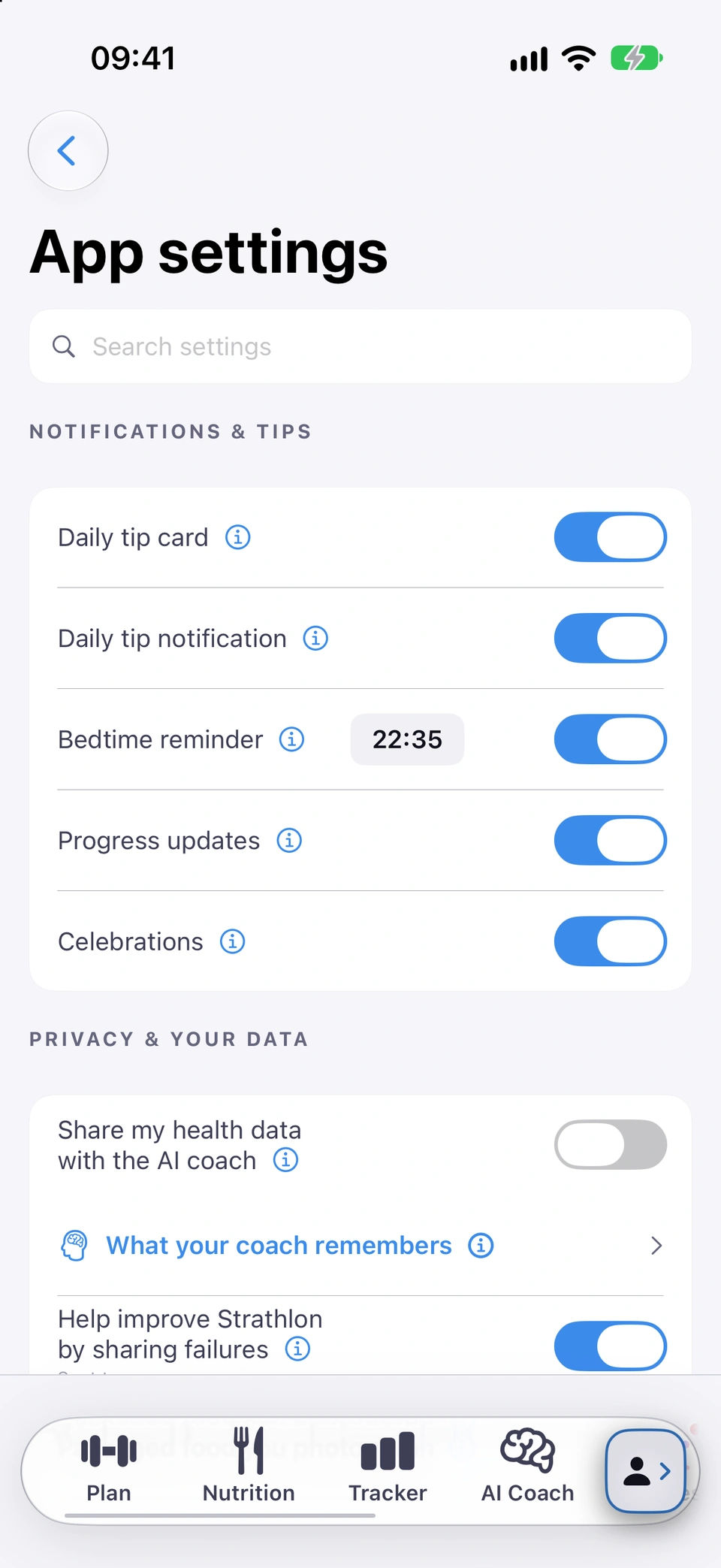
Under NOTIFICATIONS & TIPS, Daily tip card and Daily tip notification are two separate switches, alongside a Bedtime reminder with its own time picker.
Why it helps
Lets you keep the in-app card without the push notification (or the reverse), and set a bedtime reminder at a time that suits you.
How to use it
- On Settings, tap App settings.
- Under NOTIFICATIONS & TIPS, turn Daily tip card on or off.
- Turn Daily tip notification on or off. Turning it on asks for notification permission if you haven't given it yet.
- Turn on Bedtime reminder and tap the time to change it.
Good to know
- You can set the bedtime reminder for any time between 8:00pm and 11:30pm.
Updated in build 250 · What's new
↑ Back to topProgress updates
Up to ten notifications a day about your progress: your weekly review, readiness, new workouts, streaks and new working weights.
WhereSettingsApp settingsNOTIFICATIONS & TIPSProgress updates
What it is
Progress updates sends up to ten notifications a day: your weekly review, today's readiness, a report when a workout lands in Apple Health, a streak about to close, a new working weight and a tile coming alive.
Why it helps
Keeps you informed about your own progress without you having to check the app, while staying within a daily cap so it doesn't become noise.
How to use it
- On Settings, tap App settings.
- Under NOTIFICATIONS & TIPS, turn Progress updates on or off.
Good to know
- You never get two of these in one morning or one evening. If you keep ignoring them, they narrow to your weekly review, then stop until you next open Progress.
- Finish a session in Strathlon and you also get its recap, with a one-tap effort rating. That one isn't rationed, but there is only ever one per training day.
Updated in build 247 · What's new
↑ Back to topCelebrations
A switch for the on-screen celebration overlay that fires for personal bests, milestones and lift progressions.
WhereSettingsApp settingsNOTIFICATIONS & TIPSCelebrations
What it is
Celebrations switches a brief confetti moment on or off. It plays when you hit a real milestone: a quarter, half or three-quarters of the way to your goal weight, each whole kilo, a new best bodyweight, a full session at a heavier weight on one of your lifts, or reaching your goal.
Why it helps
Recognises real progress at the moment it happens, without you having to go looking for it on the Progress tab.
How to use it
- On Settings, tap App settings.
- Under NOTIFICATIONS & TIPS, turn Celebrations on or off.
Good to know
- Weight milestones are checked against your smoothed weight trend, not a single reading, so one light morning can't trigger one early.
Updated in build 236 · What's new
↑ Back to topProduct updates
A switch for push notifications about new Strathlon features and announcements.
WhereSettingsApp settingsPRIVACY & YOUR DATAProduct updates
What it is
Product updates is a switch for push notifications about new features and announcements from Strathlon — separate from the daily tip, bedtime reminder and progress notifications, which each have their own switch.
Why it helps
Lets you hear about new features as they ship, without that being bundled into (or confused with) the app's other notification channels.
How to use it
- On Settings, tap App settings.
- Under PRIVACY & YOUR DATA, turn Product updates on or off.
Good to know
- It's on by default. While it's on, your phone gives Strathlon a code that identifies this installation, so a notification can reach it.