The Plan tab, phases, targets and finishing a plan. Checked against build 266.
The Plan tab
Where your workout plan lives: this week's days, your sport and activities, and the chosen day's workout.
WherePlan
What it is
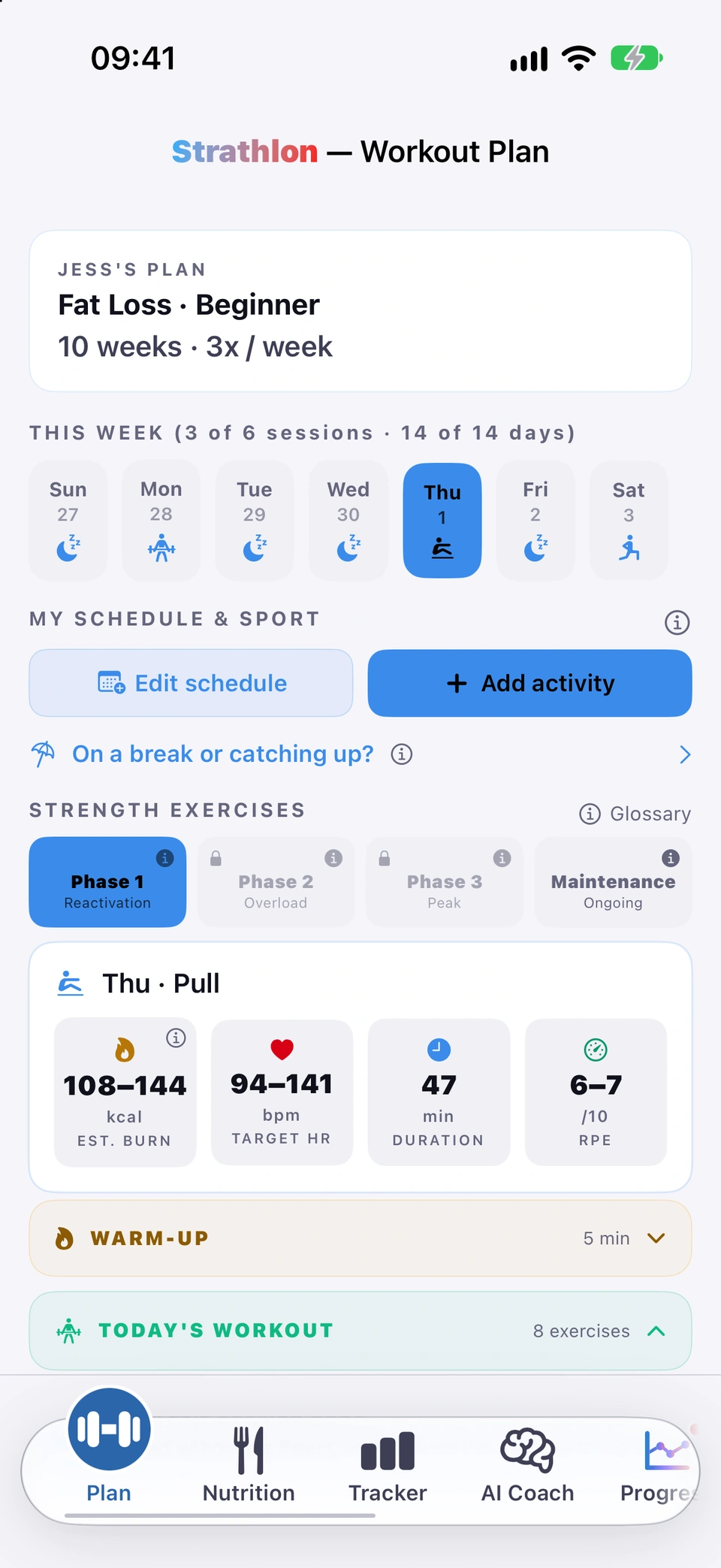
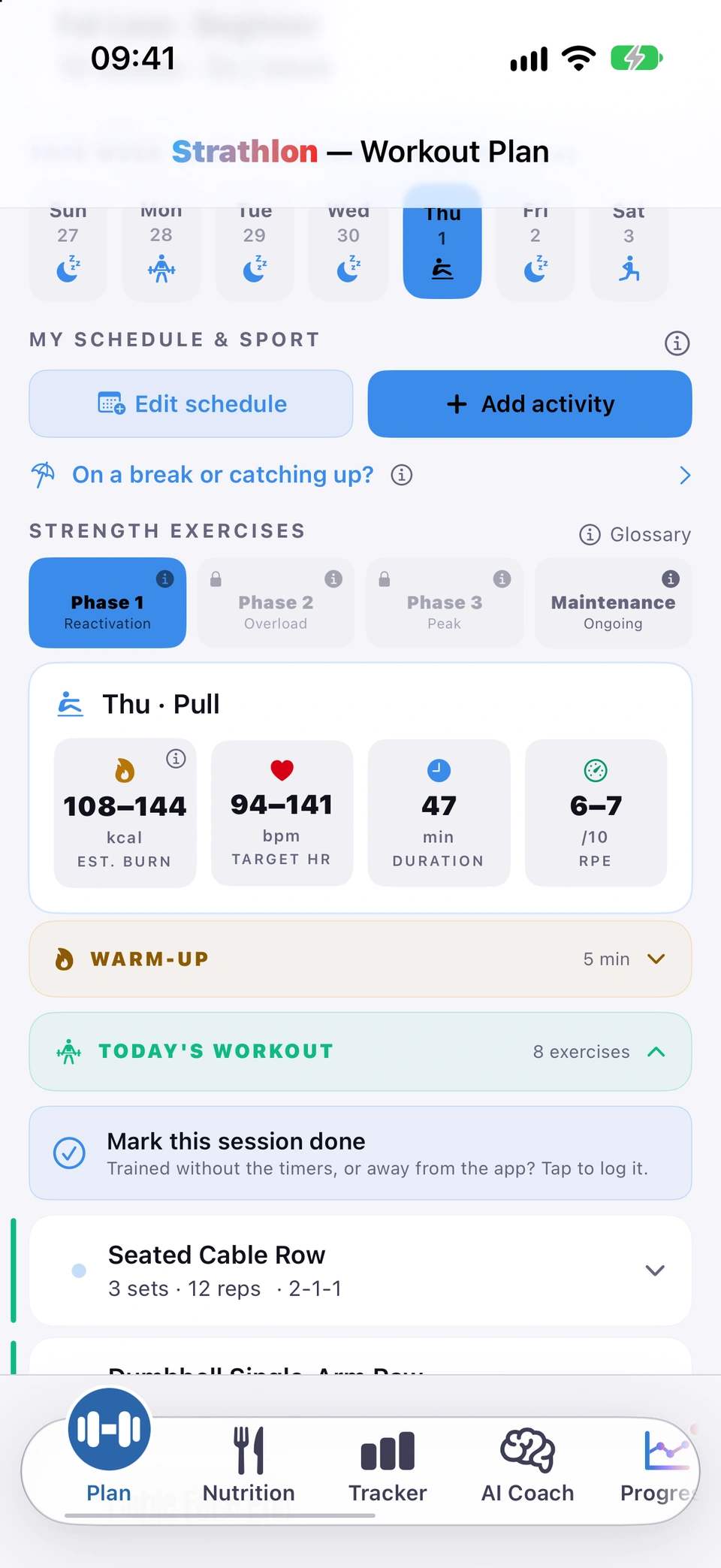
The Plan tab, headed Workout Plan, is your workout plan. From the top: your plan header, the THIS WEEK strip for picking a day, MY SCHEDULE & SPORT with that day's sport and activities, then the day's workout with its targets, warm-up, exercises and guidance.
Why it helps
Everything about a training day sits in one place, so you can see what's planned, change the day's activities and start your session without leaving the tab.
How to use it
The Plan tab on a gym day.Tap Plan on the tab bar. It opens on today.
Tap a day in the THIS WEEK strip to see that day's plan.
Under MY SCHEDULE & SPORT, tap Edit schedule to change your weekly pattern, or Add activity to log a walk, a class or an extra session.
On a gym day, scroll to STRENGTH EXERCISES for the phase tiles and the day's workout, and start your session from there.
Tips
Tap the ⓘ beside MY SCHEDULE & SPORT for what Edit schedule, Add activity and cancelling a single session each do.
Good to know
While a pregnancy or breastfeeding is recorded, the Plan tab shows national activity guidance instead of your set sessions.
The card at the top of the Plan tab showing your goal, plan length and any injuries your coaching is adapted for.
WherePlan›top card
What it is
The top card on the Plan tab shows your plan's goal and experience level, its length in weeks and your weekly gym days, and — if you've flagged any — a line naming the injuries your coaching is adapted for.
Why it helps
It's the at-a-glance summary of what your plan is built around, so you don't have to open Settings to check your goal or plan length.
How to use it
Open the Plan tab. The card at the very top shows your goal and experience (for example “Fat Loss · Beginner”), your plan length and weekly gym days, and — if you've flagged any — Coaching adapted for: injuries.
Good to know
The injury line names the injuries you've flagged, but it only means your coaching notes and exercise names are adapted for them — most home-strength exercises aren't removed because of an injury. The warm-up, HIIT finisher and core finisher are the parts that filter exercises out.
The seven-day strip on the Plan tab for picking a day, with your block's session and day progress in its title.
WherePlan›THIS WEEK strip
What it is
A seven-day strip under the plan header lets you pick any day of the week to view. Its title shows your current block's progress — for example THIS WEEK (7 of 15 sessions · 20 of 28 days). Days show a sport or gym icon, off-season days are dimmed, and days inside a declared break are marked.
Why it helps
You can see where you stand in your current phase — sessions done and days served — without opening a separate screen, and jump straight to any day's plan.
How to use it
On the Plan tab, tap any day in the strip under the plan header to see that day's plan.
Tips
The session/day count in brackets only shows while you're mid-block, training, and not in Maintenance — Maintenance has no block count to show.
Four training phases — Reactivation, Progressive Overload, Peak & Definition — then ongoing Maintenance, as tiles above your workout.
WherePlan›phase tiles above the workout
What it is
Strathlon's programme runs through three timed phases — Phase 1 · Reactivation, Phase 2 · Progressive Overload (supersets introduced) and Phase 3 · Peak & Definition (tri-sets) — then an ongoing Maintenance · Sustain & Build phase you can switch to at any time. Each phase tile shows its name and week range; tap its ⓘ for what it trains and why.
Why it helps
Your training changes in a structured way as you progress — from movement-quality work to heavier, denser training — rather than repeating the same session every week.
How to use it
On the Plan tab, the phase tiles sit above your workout. Tap the ⓘ on a tile to read what that phase trains and why.
Good to know
Phase lengths depend on your plan's total weeks, so a very short plan may not reach Phase 3 at all.
“Phase N unlocked!” banner
A small one-time banner appears the day you earn your next phase.
WherePlan›“Phase N unlocked!”
What it is
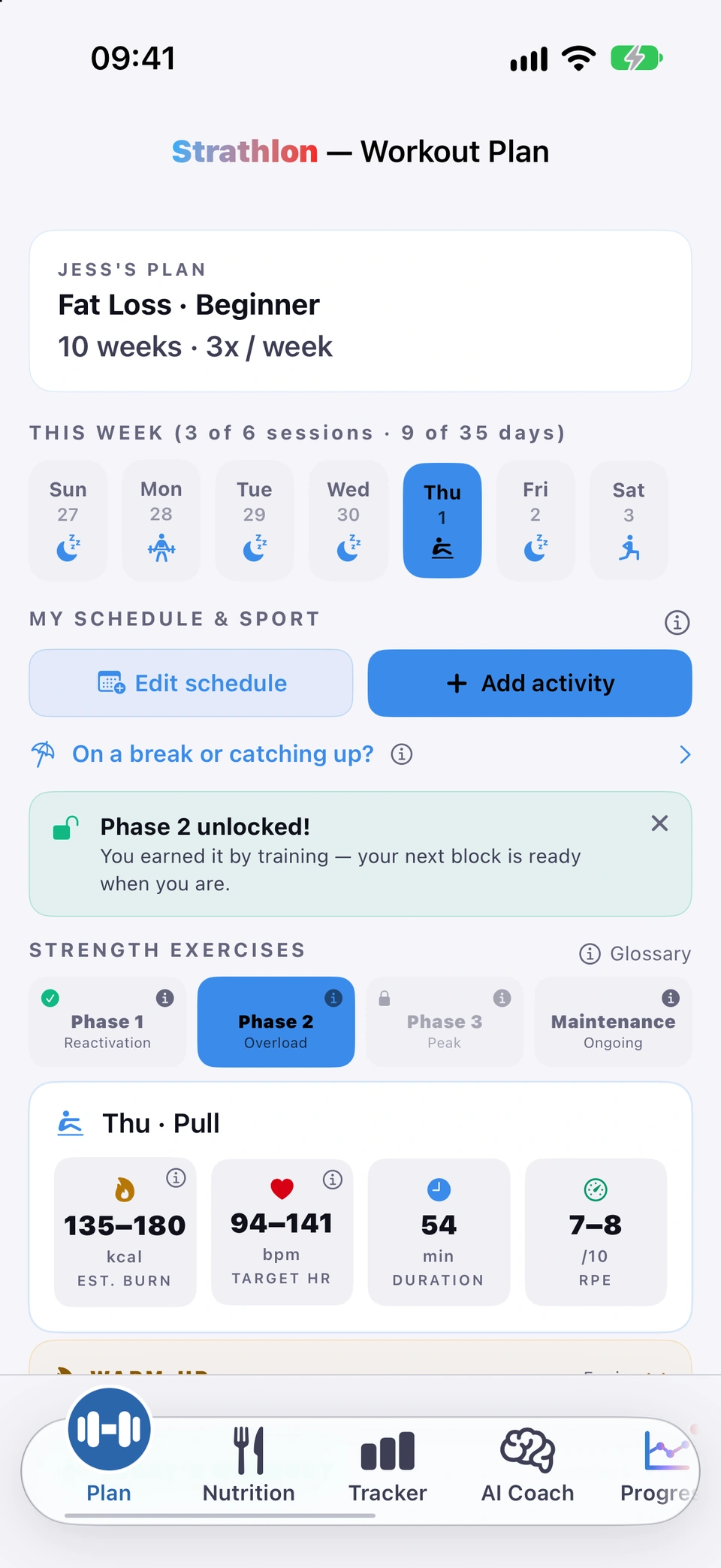
The first time you open the Plan tab after earning a new phase, a small banner reads Phase N unlocked! with a note that you earned it by training.
Why it helps
It marks the moment your training has genuinely moved on, without an intrusive celebration.
A quiet moment marking real progress.
When it happens
Shown once, automatically, the first time you open the Plan tab after your plan has earned its next phase. Tap the ✕ to dismiss it.
Good to know
It fires once per phase. Turning Celebrations off in Settings postpones the moment rather than losing it; turning Lock future phases until earned off consumes it silently, since there is then no unlock to announce.
You move up a phase only when every session in the block is finished in full and the block's weeks have passed — both, not either.
WherePlan›phase tile ⓘ
What it is
Your plan advances to the next phase only once two things are both true: you've completed every session the block set (finished in full — sport-only days, the HIIT finisher and warm-ups don't count on their own), and the block's weeks have passed. Tap a phase tile's ⓘ to see exactly where you stand on both counts.
Why it helps
So a phase change is never a surprise — the ⓘ tells you, in your own numbers, what's left before your training moves on.
How to use it
Tap the ⓘ on the phase tile you're currently training. It states your session count and day count, and what still has to happen before the next phase opens.
Good to know
A session only counts once you finish everything the plan set that day — a partial session doesn't count, though a session you mark done by hand does.
Tap the ⓘ on any phase tile for what that phase is, why it's built that way and, for yours, where you are in it.
WherePlan›a gym day›phase tile›ⓘ
What it is
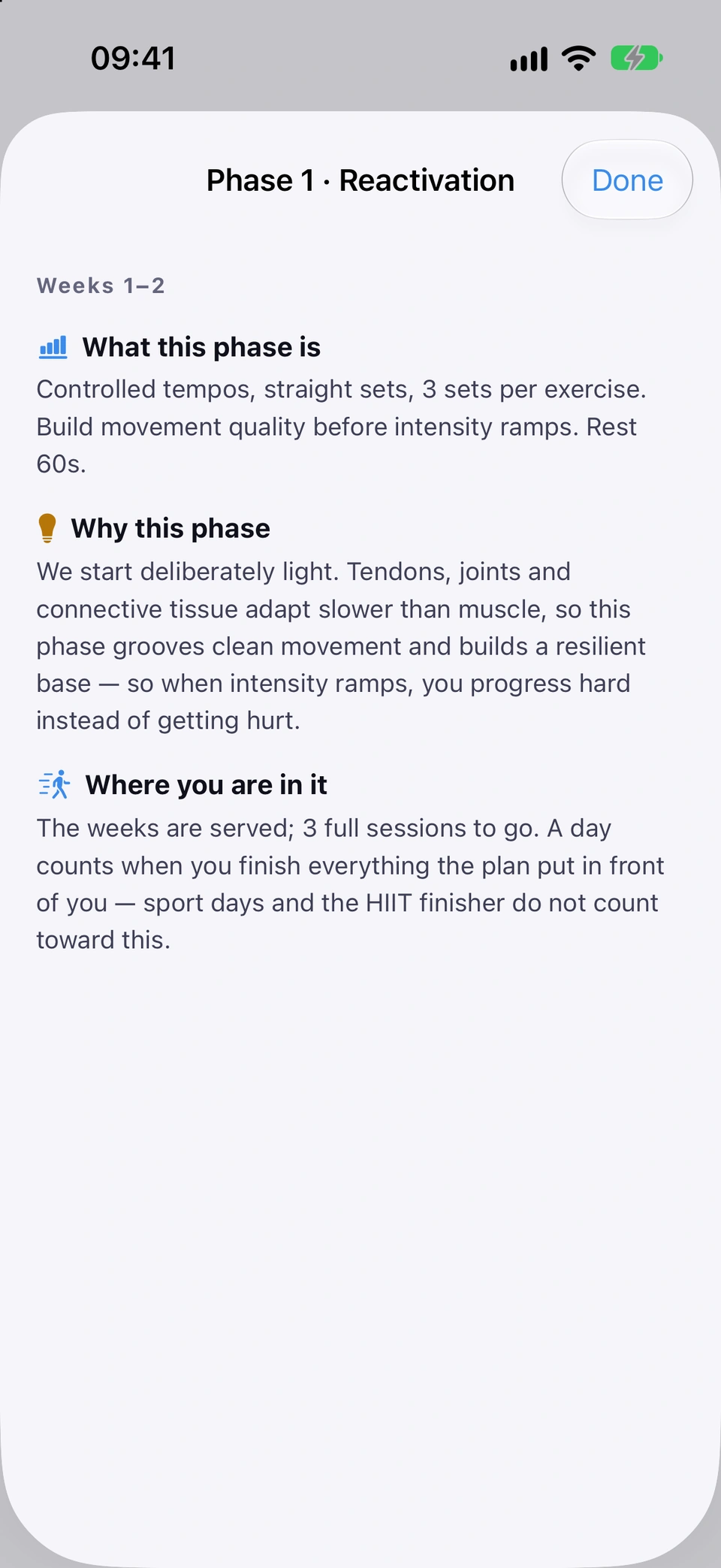
Each phase tile has its own ⓘ. It opens a short sheet named after the phase, with its weeks, What this phase is (the set and rep structure) and Why this phase (the reasoning behind it). On the phase you're training it adds Where you are in it; on a locked phase it adds Not open yet, which says what opens it.
Why it helps
You can see what a block is for, and how far through it you are, without leaving the Plan tab or starting anything.
How to use it
On the Plan tab, pick a gym day. The phase tiles sit just under STRENGTH EXERCISES.
The ⓘ on a phase tile.Tap the small ⓘ in the corner of any phase tile: the one you're training or any other.
Read the sheet, then tap Done. Opening it never changes which phase you're training.
Tap any phase tile to see that phase's full workout read-only — only starting it is locked.
WherePlan›tap a phase tile
What it is
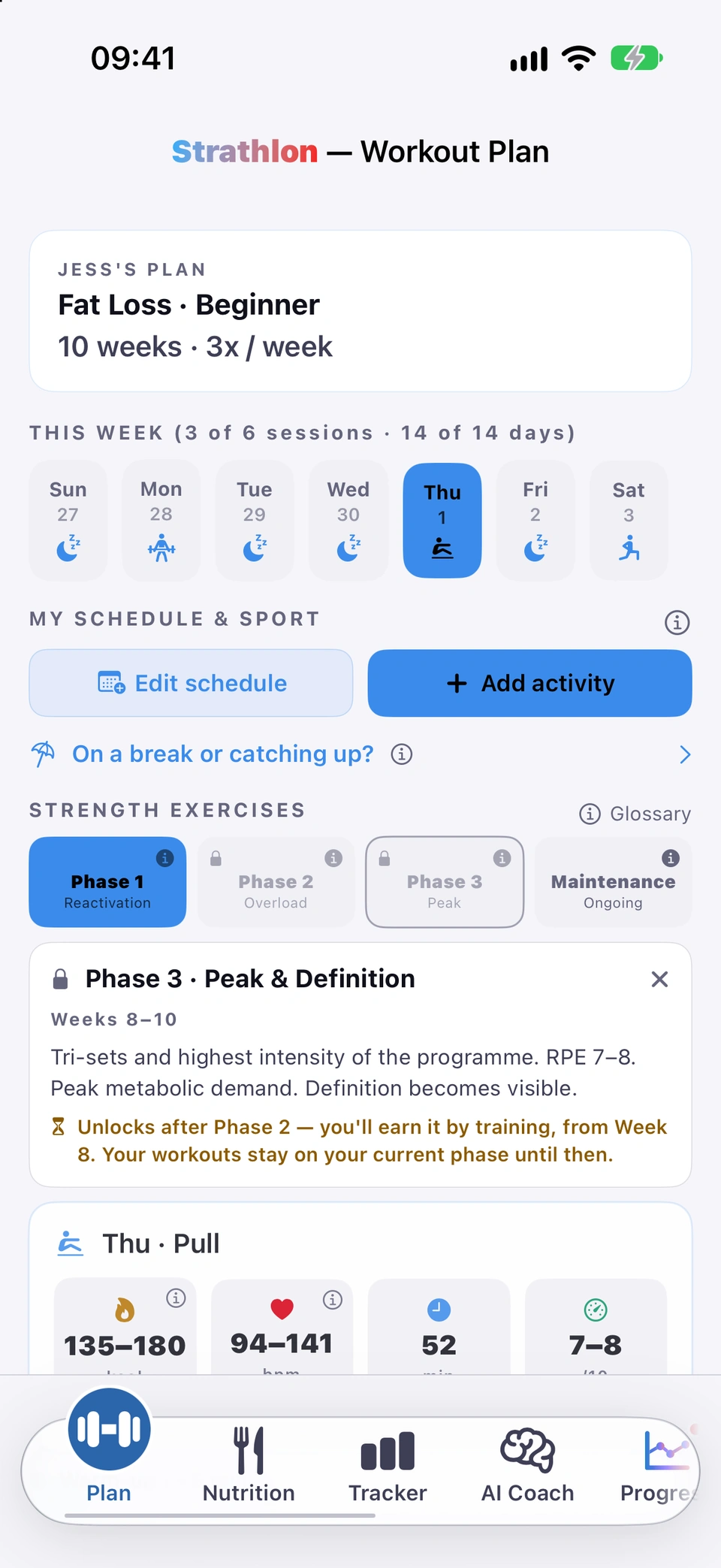
Tapping a phase tile that isn't the one you're training opens it read-only: the full workout, exercises you can expand, demo links and Ask Coach all work. Only actually starting the session is locked, if that phase itself is locked.
Why it helps
You can see what a future or past phase looks like before you get there, without it changing what you're actually training today.
How to use it
Tapping a phase you're not training opens it read-only.On the Plan tab, tap any phase tile that isn't the one you're training. Its workout opens read-only below the tiles.
Tap the tile again, or tap your active phase, to close the preview and return to your current workout.
Good to know
A locked phase's preview shows what it contains, but you can't start a session from it until you earn it (or turn off Lock future phases until earned).
A Settings switch, on by default, that keeps later phases locked until you earn them; turn it off to open every phase freely.
WhereSettings›Training›Lock future phases until earned
What it is
In Training settings, Lock future phases until earned is on by default — it keeps Phase 2 and 3 locked until you earn them by training. Turn it off and every phase tab is freely tappable to start from, as if none were locked.
Why it helps
On by default so your training follows the structured programme; turning it off suits someone who wants to start training a later phase straight away.
The selected day's tiles: estimated burn, target heart rate, duration and effort on a gym day; calorie target, protein and sleep on others.
WherePlan›selected day›target tiles
What it is
The tiles under the selected day's header follow the kind of day. On a gym day they show the session's estimated gym burn (EST. BURN), TARGET HR, DURATION and effort (RPE — how hard the sets should feel, out of 10). On a rest day they show your calorie TARGET, PROTEIN and SLEEP hours. On a match or practice day they show your calorie TARGET, PROTEIN, the session's EST. BURN and SLEEP hours. On a gym day, tap the ⓘ on EST. BURN, and from Phase 2 the ⓘ on TARGET HR, for what they mean.
Why it helps
Everything you need to fuel and pace the day's session sits in one place, without switching tabs.
How to use it
The day's targets, all in one row.On the Plan tab, select a day. Its target tiles show underneath the workout header.
Good to know
On a day with both gym and sport, EST. BURN covers the gym session, and the sport session's bonus shows under MY SCHEDULE & SPORT.
“About Est. burn”
Est. burn is a cautious estimate of the gym work only — it doesn't set your calorie targets.
WherePlan›EST. BURN tile›“About Est. burn”
What it is
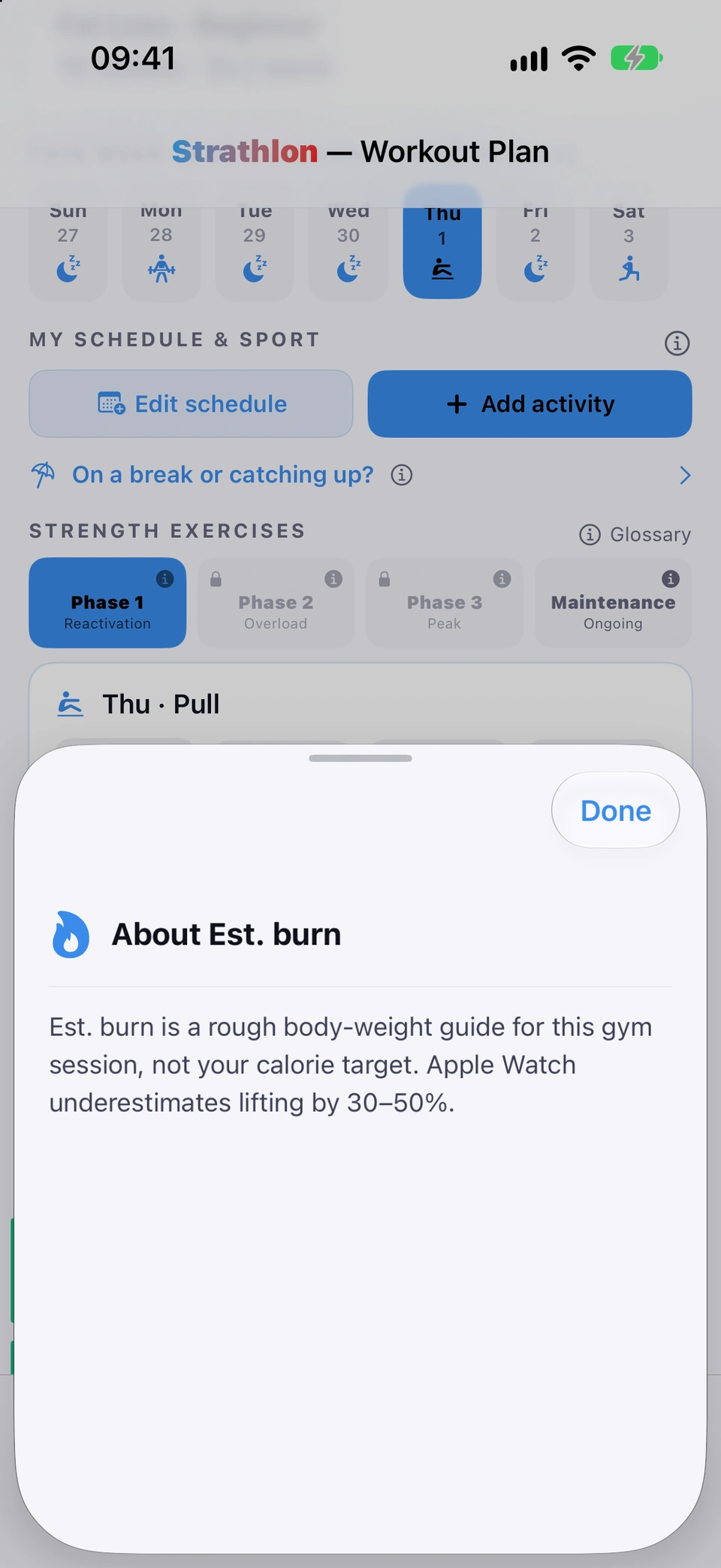
Tapping the ⓘ on the EST. BURN tile opens a short explainer: it's a rough body-weight guide for the gym session only, not your calorie target, and Apple Watch underestimates lifting by 30–50%. On a double-session day it also notes your sport & activity bonus is shown separately, in My Schedule.
Why it helps
So you know not to treat the figure as a precise number, and not to confuse it with the calories your Nutrition target is actually built from.
How to use it
What Est. burn does, and doesn't, mean.On the Plan tab's session target tiles, tap the ⓘ on EST. BURN.
“About Target HR”
Explains the heart-rate range shown for the day's session, for lifting and for the HIIT finisher.
WherePlan›TARGET HR tile›“About Target HR”
What it is
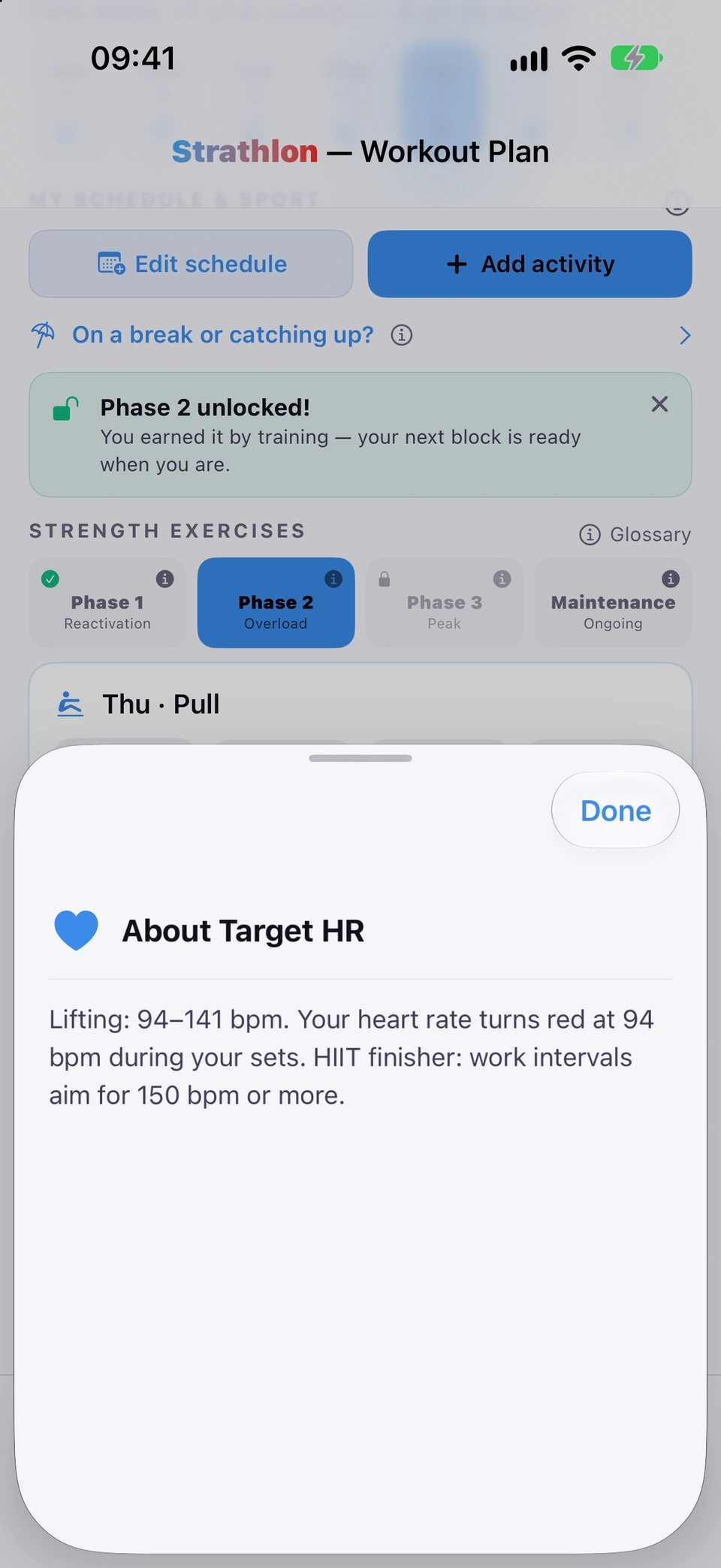
Tapping the ⓘ on the TARGET HR tile opens an explainer: for lifting, your heart-rate reading turns red at the tile's lower number during your sets; from Phase 2 on, when the day has a HIIT finisher, it also states the higher figure work intervals aim for.
Why it helps
So the number on the tile has a plain meaning, rather than being a bare range.
How to use it
What the Target HR range means.On the Plan tab's session target tiles, tap the ⓘ on TARGET HR.
Short tips at the bottom of each day, matched to the day's type — training, rest, double session, sport or activity.
WherePlan›bottom of the day›“<TYPE> DAY GUIDANCE”
What it is
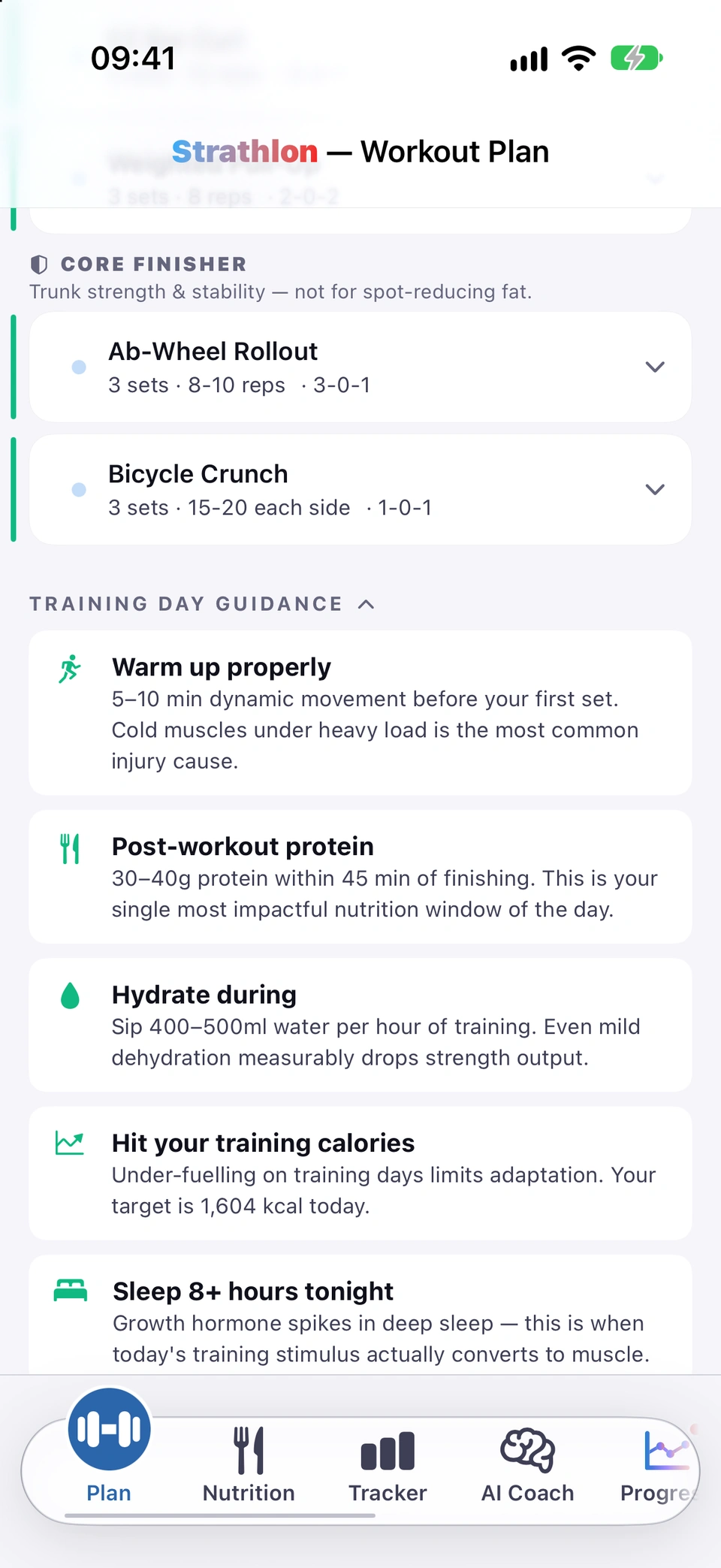
At the bottom of each day, a foldable set of cards matches the day's type: REST DAY GUIDANCE, TRAINING DAY GUIDANCE, DOUBLE SESSION GUIDANCE, SPORT TRAINING GUIDANCE, WORKOUT DAY GUIDANCE or ACTIVITY DAY GUIDANCE — covering things like warming up, hydration, protein timing and tonight's sleep target.
Why it helps
Practical, day-specific advice without you having to ask for it.
How to use it
Short, day-specific tips at the bottom of the day.On the Plan tab, scroll to the bottom of any day. Tap the header to expand or fold the cards.
After a long gap mid-block, a banner offers to ease back in at Phase 1, or continue where you left off.
WherePlan›“Welcome back — it's been N days”
What it is
If you've been away for a long stretch, part-way through a block, a banner reads Welcome back — it's been N days with two choices: Ease me back in (Phase 1) or I'm good, continue.
Why it helps
Jumping straight back into heavier work after a long layoff is riskier than easing in, so the app offers the safer option without forcing it.
How to use it
Open the Plan tab after a long gap mid-block.
Tap Ease me back in (Phase 1) to restart training at Phase 1, or I'm good, continue to carry on where you left off.
Good to know
It's an optional offer, not a requirement — your plan already pauses progression while you're away, so this is a safety option rather than a correction.
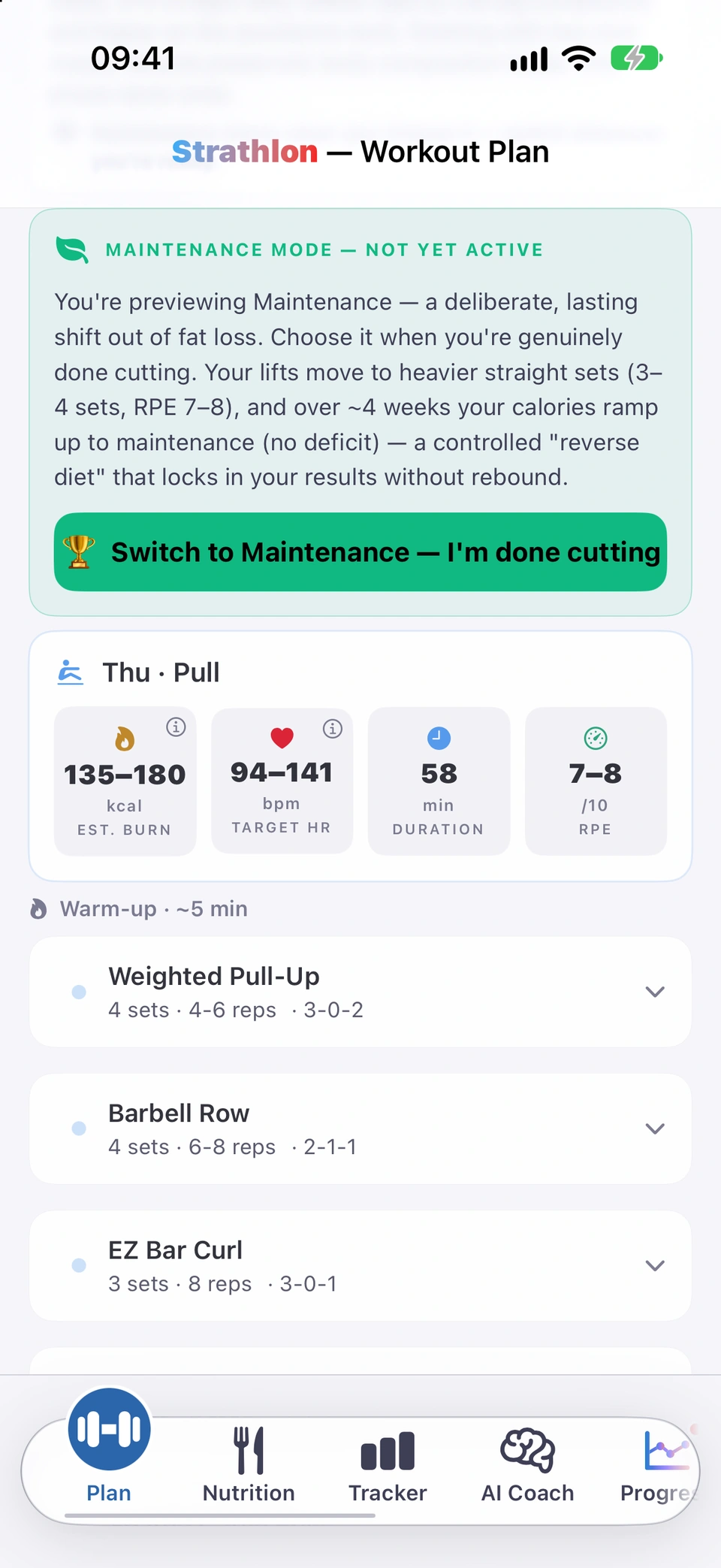
Hold your results: calories move to maintenance and training shifts to heavier strength work. You choose when.
WherePlan›Maintenance tile›Switch to Maintenance
What it is
Maintenance is an ongoing phase after the three training phases. When you switch, your calories move to maintenance over four weeks (a reverse diet), and your gym work shifts to heavier loads and lower reps on the big lifts. Your protein target, training days, sport schedule, injury adaptations and coaching stay the same.
Why it helps
The end of a cut or a build gets a next step: you keep what you've built instead of dieting on or stopping.
How to use it
Switching to Maintenance from the Plan tab.Start from the Maintenance tile on the Plan tab (see below), from 🏆 Switch to Maintenance when your plan ends or you reach your goal weight, or from Switch to Maintenance Phase → on Nutrition when you're close to your goal.
From the end-of-plan or goal screens, read WHAT CHANGES IN MAINTENANCE and WHAT STAYS THE SAME, then tap Enter Maintenance Phase.
While it runs, Nutrition shows Maintenance Phase with the week of the reverse diet you're in, such as Reverse diet week 2 of 4.
Nothing about your weight stops you switching. Maintenance starts when you choose it — switch whenever you're ready.
Good to know
You can't switch while a workout is in progress. Finish or end it first.
If your calories are already held at maintenance for safety, they stay there and there is no reverse diet.
“Maintenance mode — not yet active” banner
Inside the Maintenance tile, a banner lets you switch to Maintenance after a confirm.
WherePlan›Maintenance tile›“Switch to Maintenance?”
What it is
Opening the Maintenance tile before you've switched to it shows a MAINTENANCE MODE — NOT YET ACTIVE banner explaining what switching does, with a button to switch — behind a confirmation, since the change is lasting.
Why it helps
You can read the tile's contents before committing, and the confirm makes sure switching is a deliberate choice.
How to use it
On the Plan tab, tap the Maintenance phase tile.
Read the banner, then tap its button and confirm Switch to Maintenance.
Good to know
The button is disabled, with the reason shown underneath, while a workout is in progress.
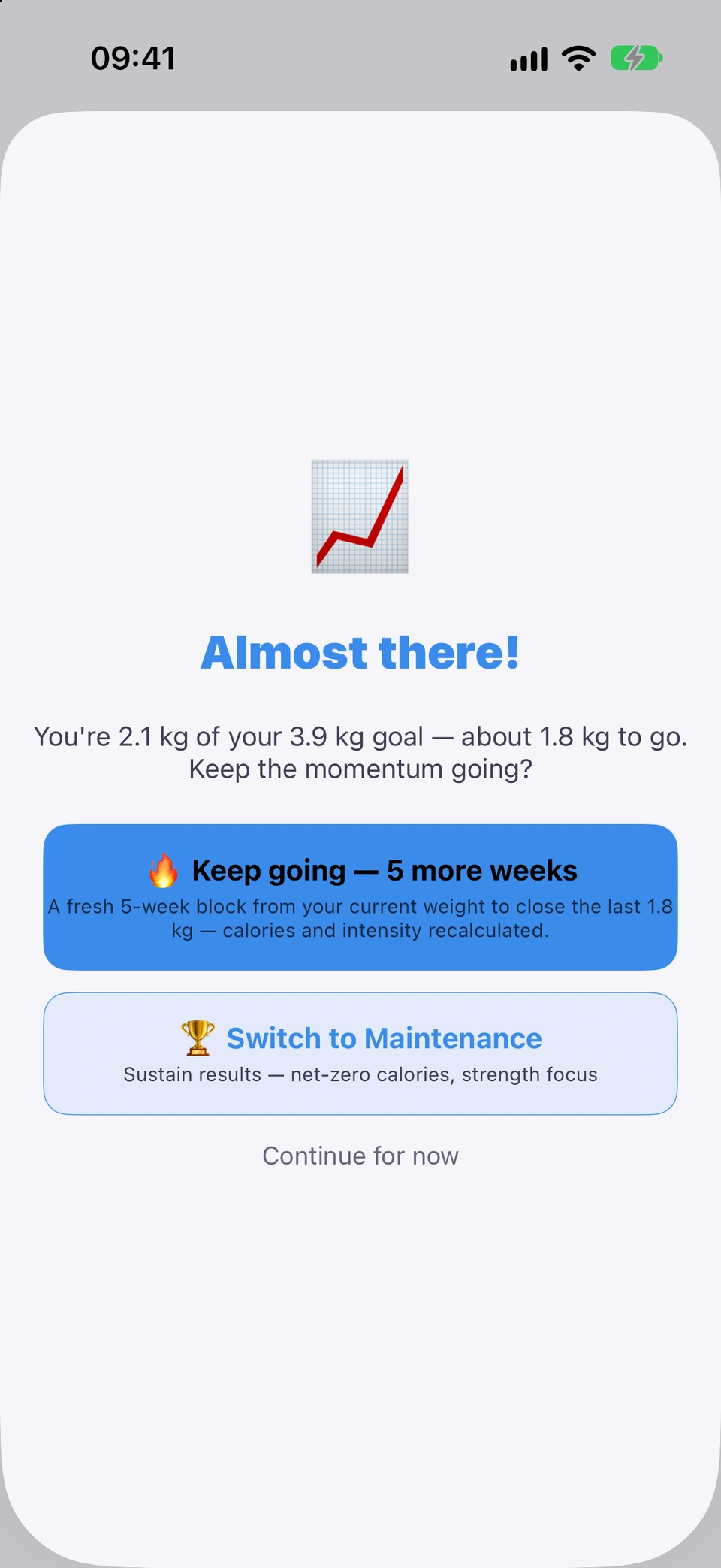
At the end of your plan, Strathlon compares where you are with your goal and offers the next step that fits.
WherePlan›end-of-plan check-in
What it is
When your plan's weeks are up, a check-in opens on the Plan tab. It reads your result against your goal weight: Goal smashed! or So close! if you reached it or all but, Almost there! if you're close, Let's regroup if the scale hasn't moved much, or Plan complete! if you haven't set a goal weight.
Why it helps
The end of a plan becomes a choice based on how you actually did, rather than a dead end.
How to use it
The check-in at the end of a plan.When your plan ends, the check-in opens by itself on the Plan tab. If you're mid-workout, it waits until the session ends.
Pick the option that suits you. It offers some of: 🏆 Switch to Maintenance to hold your result, 🔄 Start a fresh block from your current weight, 🔥 Keep going — weeks more weeks or 💥 Extend & tighten — weeks more weeks to close the gap, and 💬 Ask your coach why if progress has stalled.
Not ready to decide? Tap Continue for now.
Tips
💬 Ask your coach why opens the AI Coach with your plan length and result already written into the question.
Good to know
If your calories are held at maintenance for safety, the extend option reads 💥 Extend & push on — weeks more weeks and your calories stay at maintenance.
The check-in doesn't appear while you're in Maintenance.
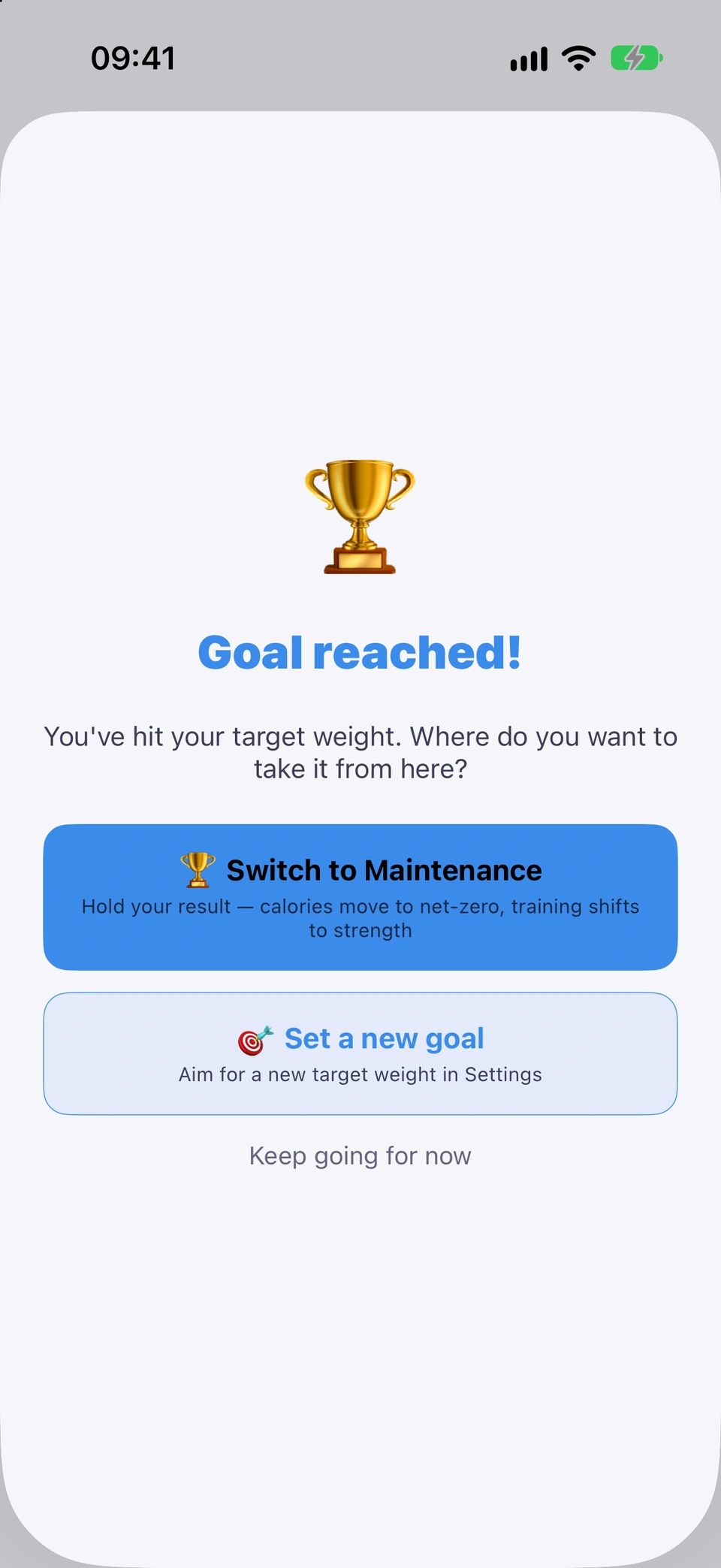
Reach your goal weight and, after the celebration, Strathlon asks what's next: Maintenance, a new goal, or keep going.
WhereAfter the goal celebration›Goal reached!
What it is
When your weight, averaged over about a week, reaches your target, Strathlon celebrates, then opens Goal reached! with three choices: 🏆 Switch to Maintenance, 🎯 Set a new goal (which takes you to Settings) or Keep going for now.
Why it helps
Reaching your goal leads straight to a decision about holding it or aiming further, at the moment it happens.
How to use it
What's next after reaching your goal.When you reach your goal weight, tap through the celebration. Goal reached! opens next.
Tap 🏆 Switch to Maintenance to see what changes and then Enter Maintenance Phase, tap 🎯 Set a new goal to set a new target weight in Settings, or tap Keep going for now.
Tips
Close to your goal but no celebration yet? Nutrition shows how far you are from your target, with Switch to Maintenance Phase →.
Good to know
It appears once per goal, and never mid-workout: it waits until your session ends.
It follows the celebration, so with Celebrations switched off it doesn't open. Nutrition still shows 🎉 Goal reached! with Switch to Maintenance Phase →.