Estimates where you are in your cycle from the periods you log in Apple Health, entirely on your phone. It starts switched on.
Uses Apple Health
Female profile
WhereSettings›HEALTH›Cycle-aware insights
What it is
Cycle-aware insights is a switch for female profiles, and it starts on. Once you allow Strathlon to read menstrual flow in Apple Health, it estimates your current cycle phase from the periods you log, on your device, and unlocks the three options underneath it, each of which starts off.
Why it helps
You get supportive, phase-aware notes on your Plan and Nutrition tabs and a Cycle & energy tile on Progress, all worked out from your own logged dates.
How to use it
On Settings, under HEALTH, open Cycle-aware insights.
Turn Cycle-aware insights on and grant Health access when asked.
Good to know
Needs at least one period logged in Apple Health before it can estimate anything.
If it has been more than about 40 days since your last logged period, the cycle notes wait for your next logged period.
While a pregnancy or breastfeeding is recorded, Cycle-aware insights pauses and returns as you left it when you clear that record in Health & safety.
A card on the Plan tab with a supportive training note for your current cycle phase.
Uses Apple Health
Female profile
WherePlan›cycle card
What it is
When Cycle-aware insights is on and there's flow data to estimate from, a card on the Plan tab offers a supportive training note for your current phase. It never changes your programmed sets, reps or weights.
Why it helps
A gentle, phase-aware nudge, purely informational — your programmed workout is untouched.
How to use it
Turn on Cycle-aware insights in Settings. The card appears automatically on the Plan tab when there's a note for your current phase.
Good to know
Only appears for phases the app has a note for — it isn't shown on every day.
The card pauses with Cycle-aware insights while a pregnancy or breastfeeding is recorded.
A card on the Nutrition tab with eating guidance for your period and the days leading up to it.
Uses Apple Health
Female profile
WhereNutrition›cycle card
What it is
When Cycle-aware insights is on and Apple Health has period data to estimate from, a card appears on the Nutrition tab, below the macro card, on your period days and in the days before your next period. It is titled Eating around your period on your period days and Pre-period appetite is normal in the days before, and carries a short, supportive note about eating for that part of your cycle.
Why it helps
A normal change in appetite around your period comes with a plain explanation and a few simple food ideas, right where you plan your eating.
Open the Nutrition tab on a day around your period. The card sits below the macro card.
Tips
With Ease my targets in my pre-period week on, the card also carries the short note Eased ~+N kcal this week — pre-period appetite is normal. while your target is set for a goal.
Under the note, a small footnote starts An on-device estimate from your Apple Health cycle logs.
Good to know
The card appears only on your period days and in the days before your next period. On other days it stays out of view.
It appears only while Cycle-aware insights is on and Apple Health has period data to estimate from, and it pauses while a pregnancy or breastfeeding is recorded.
If your calories sit at maintenance (you are in the Maintenance phase, or your calories are held there for your safety), the pre-period note keeps its appetite reassurance and its protein-and-fibre idea, leaves out the suggestion of a small planned increase in calories, and the short eased note stays hidden. The ease itself still applies if you have it on.
Optional: adds about +100 kcal to your Nutrition target in the days before and during your period.
Uses Apple Health
Female profile
WhereSettings›Cycle-aware insights›“Ease my targets…”
What it is
Ease my targets in my pre-period week is an optional switch under Cycle-aware insights. Turned on, it adds about +100 kcal to your Nutrition target in the days before and during your period, since appetite often rises then.
Why it helps
So a normal, temporary rise in appetite before your period doesn't read as going off-plan.
Your coach is told the eased number either way, but never that your cycle is the reason unless you also turn on the phase share.
“Eased ~+N kcal this week” note
A note on the Tracker tab confirming your target is eased, while your target is set for a goal.
Uses Apple Health
Female profile
WhereTracker›“Eased ~+N kcal this week”
What it is
When your pre-period ease is active and your target is set for a goal, the Tracker tab shows Eased ~+N kcal this week — pre-period appetite is normal. Tap to learn more. under your target figures.
Why it helps
So the eased number comes with a plain explanation — the on-device note is shown regardless of whether you've also switched on sharing with your coach.
If your calories sit at maintenance (you are in the Maintenance phase, or your calories are held there for your safety), the note stays hidden. Your target still eases if you have the ease on, and the cycle card on the Nutrition tab keeps offering its eating notes.
A separate, off-by-default switch — your coach sees only a general phase label.
Uses Apple Health
Female profile
WhereSettings›Cycle-aware insights›share switch
What it is
Share my cycle phase with the AI coach is a separate switch under Cycle-aware insights, off by default. Turned on, your coach sees a general cycle phase label to tailor its advice — never your logged period dates or symptoms.
Why it helps
Cycle data is sensitive, so it has its own switch, independent of your general health-sharing setting.
For users on testosterone therapy, cycle features default off — this switch turns them back on.
Female profile
WhereSettings›Cycle-aware insights›“I still menstruate”
What it is
If your profile records testosterone hormone therapy, cycle features are off by default (periods commonly stop or become irregular on masculinising therapy). I still menstruate turns Cycle-aware insights and its options back on.
Why it helps
So the default suits most people on testosterone, while anyone who does still menstruate can switch cycle features straight back on.
How to use it
On a profile with testosterone hormone therapy recorded, open Cycle-aware insights in Settings.
Turn on I still menstruate. Everything below it then works as normal.
Good to know
Only shown to a female profile with testosterone hormone therapy recorded.
A Progress tab tile with supportive guidance and, on your own data, how much heavier the scale reads on period days.
Uses Apple Health
Female profile
WhereProgress›Fuel & body›Cycle & energy
What it is
Near a logged period, the Cycle & energy tile on the Progress tab opens supportive guidance for your phase and, once there's enough data, a note that on your own weigh-ins the scale reads a bit higher on period days than others — a normal, temporary water-retention effect.
Why it helps
So a period-related bump on the scale reads as expected, not as a setback.
How to use it
On the Progress tab, find Cycle & energy under Fuel & body.
Tap it to open the guidance and, if there's enough data, the weight note.
Recording pregnancy or breastfeeding stops your set sessions and shows UK national activity guidance instead; logging carries on.
WhereSettings›HEALTH›Health & safety›“I am pregnant” / “I am breastfeeding”
What it is
Turning on I am pregnant or I am breastfeeding in Settings stops Strathlon setting your training sessions. Your Plan tab shows the UK Chief Medical Officers' and NHS activity guidance instead, with the source named against every statement, and your calorie target stays at what you burn rather than a set figure. Meals, weight and activity all keep logging as normal.
Why it helps
So the app never sets a deficit or a training programme while you're pregnant or breastfeeding, while everything else you use it for keeps working.
How to use it
On Settings, under HEALTH, open Health & safety.
Turn on I am pregnant or I am breastfeeding. Turning pregnancy on opens a one-time note to review first.
If pregnant, pick your trimester, and use End my programme if you'd like to (recommended, but optional).
Tips
Follow your doctor's, midwife's or health visitor's guidance over anything the app shows you.
Good to know
Turning the toggle off starts a fresh plan from your current weight, rather than resuming a paused one.
While either is recorded, Cycle-aware insights shows Paused · while pregnant (or while breastfeeding) in Settings, and only your pregnancy or breastfeeding guidance appears.
“A note about pregnancy”
A one-time sheet you review before pregnancy takes effect — recommends ending your programme, with an alternative that keeps it as is.
WhereSettings›Health & safety›“I am pregnant”›“A note about pregnancy”
What it is
Turning on I am pregnant opens A note about pregnancy: it recommends End my programme (recommended), or lets you keep your current plan as is — it stays where it is and its weeks keep counting, but sessions still won't be set while pregnancy is recorded. Three checkboxes, covering what the app will and won't do, medical clearance and using the app at your own risk, must be ticked to keep the programme.
Why it helps
So a decision this significant isn't made by a single accidental tap, and you understand what the app will and won't do before you continue.
How to use it
Turn on I am pregnant. The sheet opens automatically.
Tap End my programme (recommended), or tick all three boxes and tap I understand — don't end my programme to keep your programme as is.
Good to know
Backing out with Cancel or a swipe-down reverts the pregnancy toggle when this is a fresh declaration, so you're never left with the flag set and no decision made.
UK Chief Medical Officers' and NHS activity guidance shown on the Plan tab, quoted with its source against every line.
WherePlan›guidance card
What it is
While pregnancy or breastfeeding is recorded, the Plan tab shows the UK guidance: activity in pregnancy (or UK guidance: activity after childbirth) card in place of a generated session — the UK national guidance, with the source named against every statement, plus what Strathlon still does for you (logging, calorie target at what you burn).
Why it helps
The app doesn't design a pregnancy or postpartum programme itself — it shows the UK's own national guidance instead, with sources you can check.
How to use it
With pregnancy or breastfeeding recorded, open the Plan tab. The guidance card replaces your usual session.
Tap SOURCES to expand the full source list.
Once your programme has ended and no pregnancy or breastfeeding is recorded, tap Start a new programme to begin one again.
Good to know
General information, not medical advice — follow your midwife, GP or maternity team over anything on this card.
The readiness check is seven plain yes/no questions about your health — things like heart conditions, chest pain, dizziness and ongoing medical conditions. A Retake readiness check button in Settings lets you go through it again at any time.
Why it helps
It's a readiness screen, not medical advice or a diagnosis — a simple, non-blocking check that keeps your plan gentle if anything stands out, until you confirm clearance.
How to use it
On Settings, open Health & safety and tap Retake readiness check.
Answer each question Yes or No.
Good to know
If any answer flags a concern, your calorie deficit stays capped until you confirm medical clearance — see the Plan tab banner.
“Get medical clearance first” banner
A Plan tab banner that keeps your plan gentle until you confirm medical clearance.
WherePlan›“Get medical clearance first”
What it is
If a readiness answer stands out, a Get medical clearance first banner stays on the Plan tab, keeping your calorie deficit capped and intensity easier. Tap I've got medical clearance once you've checked with your doctor, or dismiss it for now — it returns on your next visit until you do.
Why it helps
It never blocks you from using the app, but it keeps your plan cautious until you've had the all-clear.
When it happens
Shown automatically on the Plan tab after a readiness answer that suggests checking with your doctor, until you confirm clearance.
Two optional questions; a flagged answer keeps your plan at maintenance and eases off tracking nudges, with a support link.
WhereSettings›Health & safety›YOUR RELATIONSHIP WITH FOOD
What it is
Two optional yes/no questions under YOUR RELATIONSHIP WITH FOOD — whether you ever worry about losing control over how much you eat, and whether food or weight dominates your life. Answering Yes to either keeps your plan at a gentle maintenance and eases off tracking nudges, with a supportive message and, for UK users, a signpost to Beat.
Why it helps
A calorie app isn't right for everyone — this is a private, optional way to say so and get a gentler plan.
How to use it
On Settings, open Health & safety and scroll to YOUR RELATIONSHIP WITH FOOD.
Under CONDITIONS & MEDICATIONS in Health & safety, you can optionally list ongoing health conditions and medications that affect heart-rate or appetite readings.
Why it helps
So the AI coach knows to stay cautious and add the right caveat, rather than treating your numbers at face value.
How to use it
On Settings, open Health & safety and scroll to CONDITIONS & MEDICATIONS.
Add conditions under ONGOING HEALTH CONDITIONS (OPTIONAL), or medications under MEDICATIONS THAT AFFECT OUR READINGS (OPTIONAL).
Tips
Always defer to your prescriber over anything the app says about a medication.
Good to know
Strathlon doesn't treat conditions — this is only so the coach can stay cautious and remind you to check with your doctor.
16-17 year olds never get a calorie deficit; everyone has a minimum daily calorie floor.
WhereAutomatic
What it is
If you're 16 or 17, Strathlon never sets a calorie deficit — the fat-loss goal isn't offered, and your plan always keeps you at maintenance or above. Separately, every profile has a minimum daily calorie floor that no target the app sets goes below, as a safety backstop.
Why it helps
So no plan the app generates can ever put a minor, or anyone, into an unsafe deficit.
When it happens
Applied automatically to every profile — under-18 status hides the fat-loss goal at setup, and the calorie floor is applied to every calorie target the app calculates.
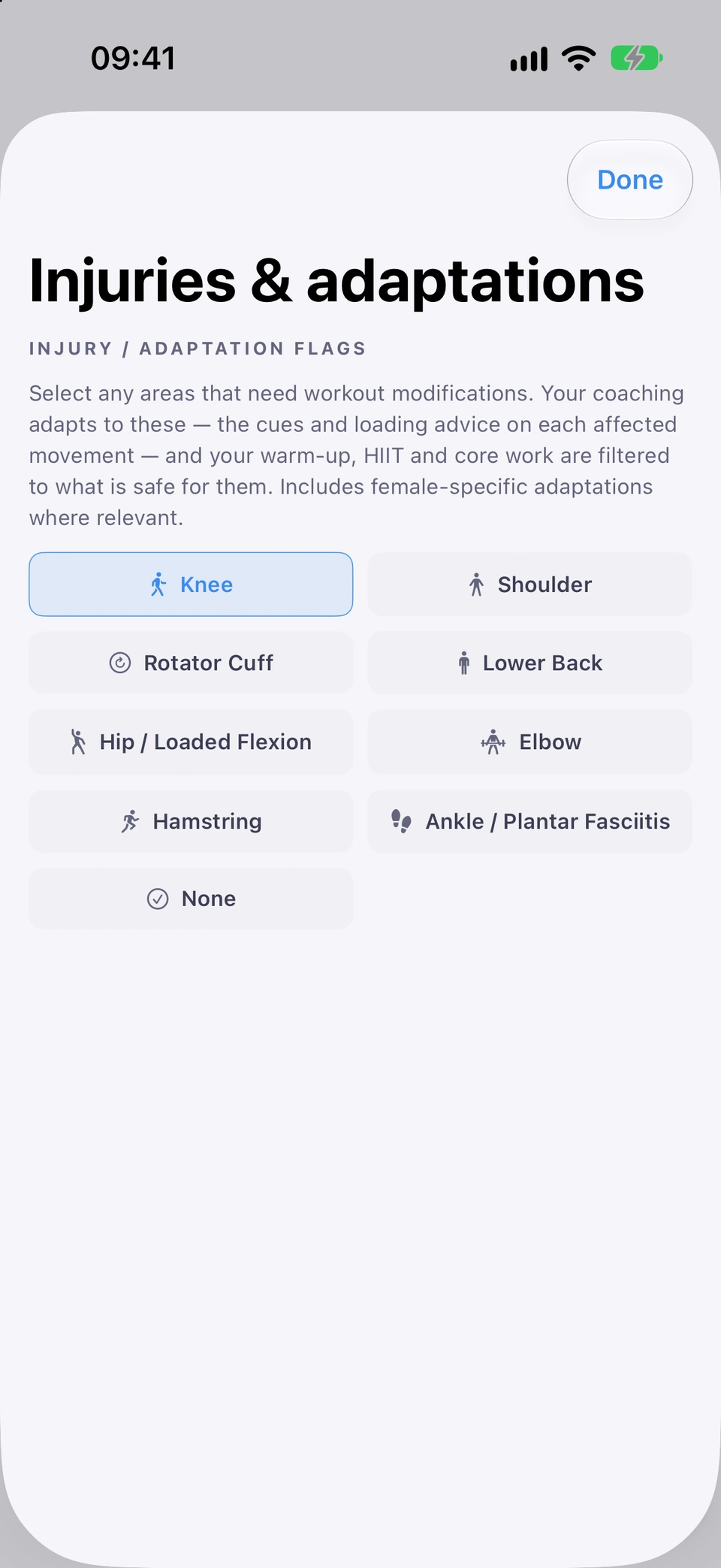
Flag any of eight injuries and your coaching notes, warm-up, HIIT and core work adapt for it.
WhereSettings›ABOUT YOU›Injuries & adaptations
What it is
Injuries & adaptations in Settings lets you flag Knee, Shoulder, Rotator Cuff, Lower Back, Hip / Pelvic Floor, Elbow, Hamstring or Ankle / Plantar Fasciitis. Your exercise coaching notes are adapted for what you flag, and the warm-up picker, HIIT finisher and core finisher filter out movements that could aggravate it.
Why it helps
So your training stays safe for whatever you're carrying, without you having to work it out exercise by exercise.
How to use it
Flag what applies; your coaching adapts.On Settings, under ABOUT YOU, open Injuries & adaptations.
Tick any that apply. Untick to clear one once it's no longer relevant.
Good to know
An injury flag rarely removes an exercise from your main workout, and never a home strength move. For most exercises what changes is the coaching note, not the exercise itself; the warm-up, HIIT finisher and core finisher are the parts that genuinely filter movements out.